
Versions & Publishing
Why you need to publish versions, how to save snapshots, and easy rollback to historical versions.
Why do you need to "Publish"?
Edits in the editor only take effect in the "Debug Chat" panel. To formally apply your changes to your workflows or agents, you must click "Publish" to deploy a formal version.
Note: The debugging environment is isolated from the production deployment environment. This ensures that when you edit or debug skill code, it will not affect the online agents and workflows currently running.
Saving Version Snapshots
- Once testing is successful, click the "Publish" button in the top right corner of the editor.
- In the modal, enter the Version Name (by default, the current time is prefilled, but you can customize it, e.g.,
v1.0.0). - Confirm, and the system will solidify the current code state as an "official version" and publish it.
Note: During publishing, the system automatically applies the ignore rules specified in the
.gitignore file at the project root (if not present, a default file ignoring node_modules,
.venv, dist, etc., will be created). Only files that are not ignored will be packaged, and you
must ensure the total size of these files does not exceed the limit, otherwise publishing may
fail.
Version Rollback
To restore a previous version:
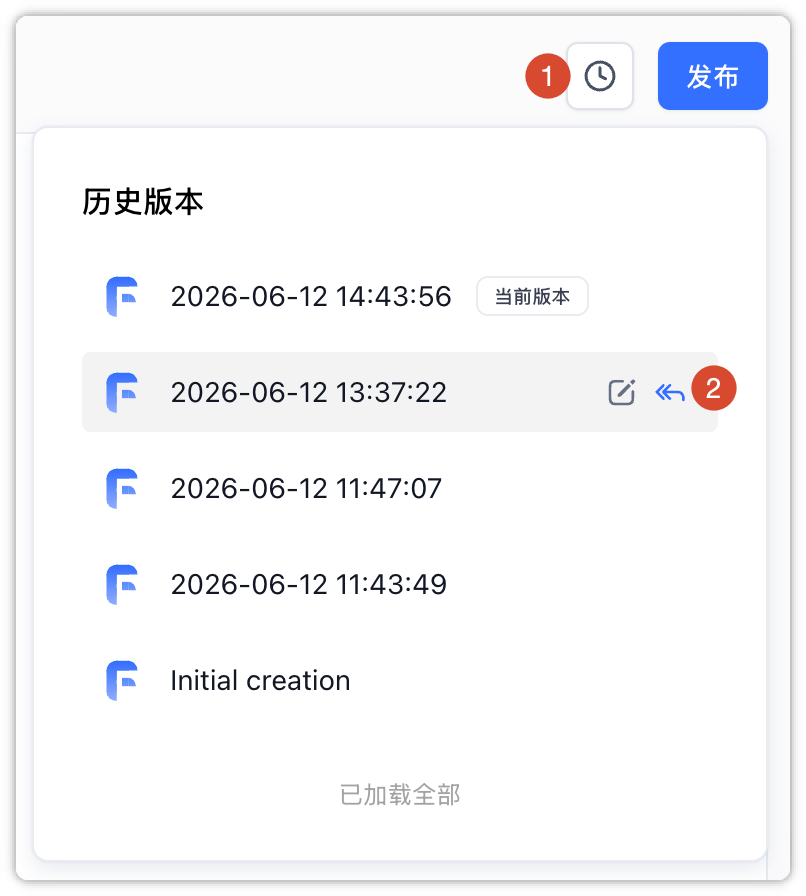
- Click the "Version History" (clock) icon in the top right corner of the editor to view all published snapshots.
- Hover over the version you want to restore, and click the "Switch" (return arrow) icon to instantly revert both your workspace files and the live production version back to that snapshot.
Note: Restored versions will not carry files that were ignored by .gitignore (for example,
local files like node_modules or .venv that were ignored cannot be recovered via rollback).
File Updated