
Template Import
Batch-import Dataset data from a CSV or Excel template
Template import lets you add prepared content or question-answer pairs to a Dataset in batches. FastGPT accepts .csv and .xlsx files and creates Dataset entries from the questions, answers, indexes, and metadata in the template.
File Structure
The first row must contain the headers. The following columns are supported:
| Header | Required | Count | Description |
|---|---|---|---|
q | Yes | Exactly 1 | Content or a question |
a | Yes | Exactly 1 | The answer; it can be empty when importing standalone content |
index | No | Repeatable | A custom index. A row can contain multiple indexes |
metadata | No | At most 1 | A JSON object for custom information such as source or category |
Each row represents one Dataset entry. q and a should not both be empty. Headers can appear in any order, but do not add unsupported headers.
CSV Example
q,a,index,index,metadata
"What is FastGPT?","FastGPT is an AI agent development platform.","FastGPT overview","AI agent platform","{""source"":""product-doc"",""category"":""overview""}"
"How do I import Dataset data?","Use a CSV or Excel template.","Dataset import","template import","{""source"":""help-center""}"
Use UTF-8 encoding for CSV files. Cells that contain commas, line breaks, or double quotes must be escaped according to CSV rules.
Excel Example
Excel files use the same headers and data structure as CSV files:
| q | a | index | index | metadata |
|---|---|---|---|---|
| What is FastGPT? | FastGPT is an AI agent development platform. | FastGPT overview | AI agent platform | {"source":"product-doc","category":"overview"} |
| How do I import Dataset data? | Use a CSV or Excel template. | Dataset import | template import | {"source":"help-center"} |
Excel files must meet these requirements:
- Use the
.xlsxextension..xlsfiles are not supported. - Include exactly one worksheet.
- Do not contain merged cells.
- Use the first row for the template headers.
Import a Template
-
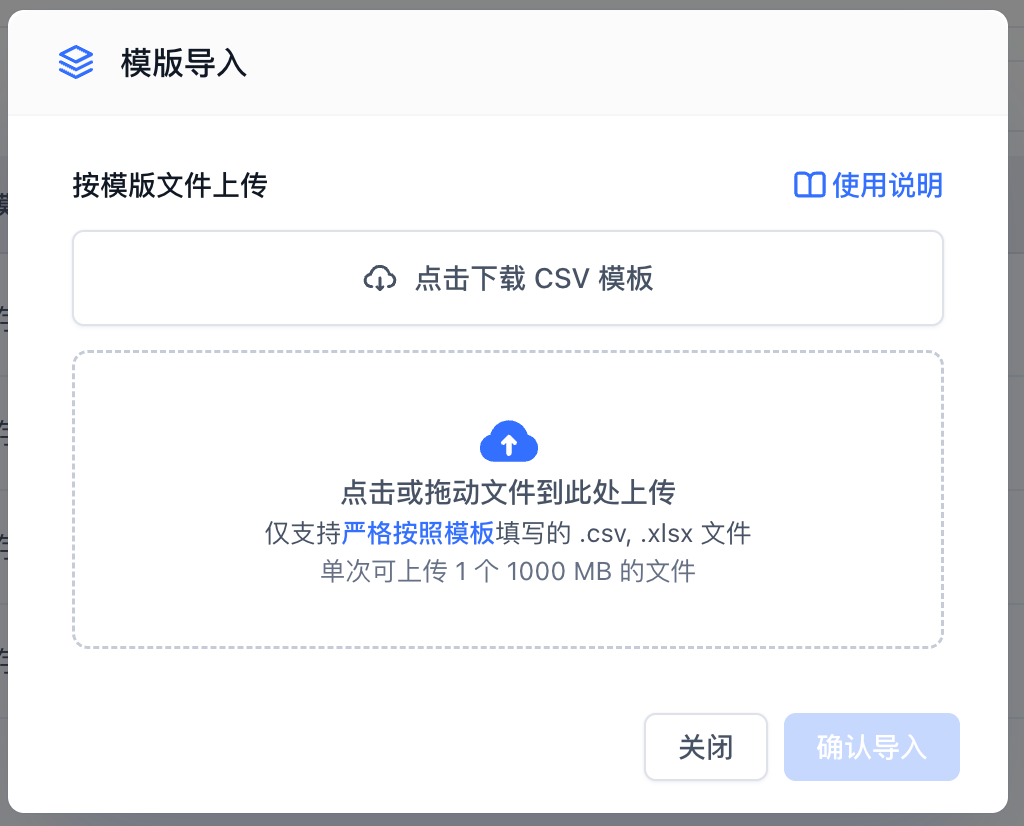
Open the target Dataset and select Template Import from the import menu.
-
Select Download CSV Template for an example, or prepare an
.xlsxfile with the same structure. -
Add your data and verify the headers, cell contents, and file format.
-
Select the file and confirm the import. You can import one file at a time.
-
After the import finishes, review the data and indexing status in the Dataset Collection.

Metadata
Use metadata to attach structured information to each entry. The cell must contain a valid JSON object, for example:
{ "source": "product-doc", "category": "overview", "version": 2 }Do not use an array, plain text, or invalid JSON. In CSV files, escape the JSON according to CSV rules. In Excel files, enter the JSON string directly in the cell.
Invalid File Format
If FastGPT reports an invalid file format, check the following:
- The file uses the
.csvor.xlsxextension. - The header row contains only supported columns.
- There is exactly one
qcolumn and oneacolumn, with no more than onemetadatacolumn. - Quotes, commas, and line breaks are correctly escaped in CSV files.
- The Excel file contains exactly one worksheet and no merged cells.
Start with a small test file. After confirming the format, import larger datasets in batches.
Last updated