
Voice Input
FastGPT voice input configuration
Voice Input lets users record speech in the chat UI and automatically convert it to text. It is useful on mobile devices, in customer support workflows, and in scenarios where typing is inconvenient.
Configuration Entry
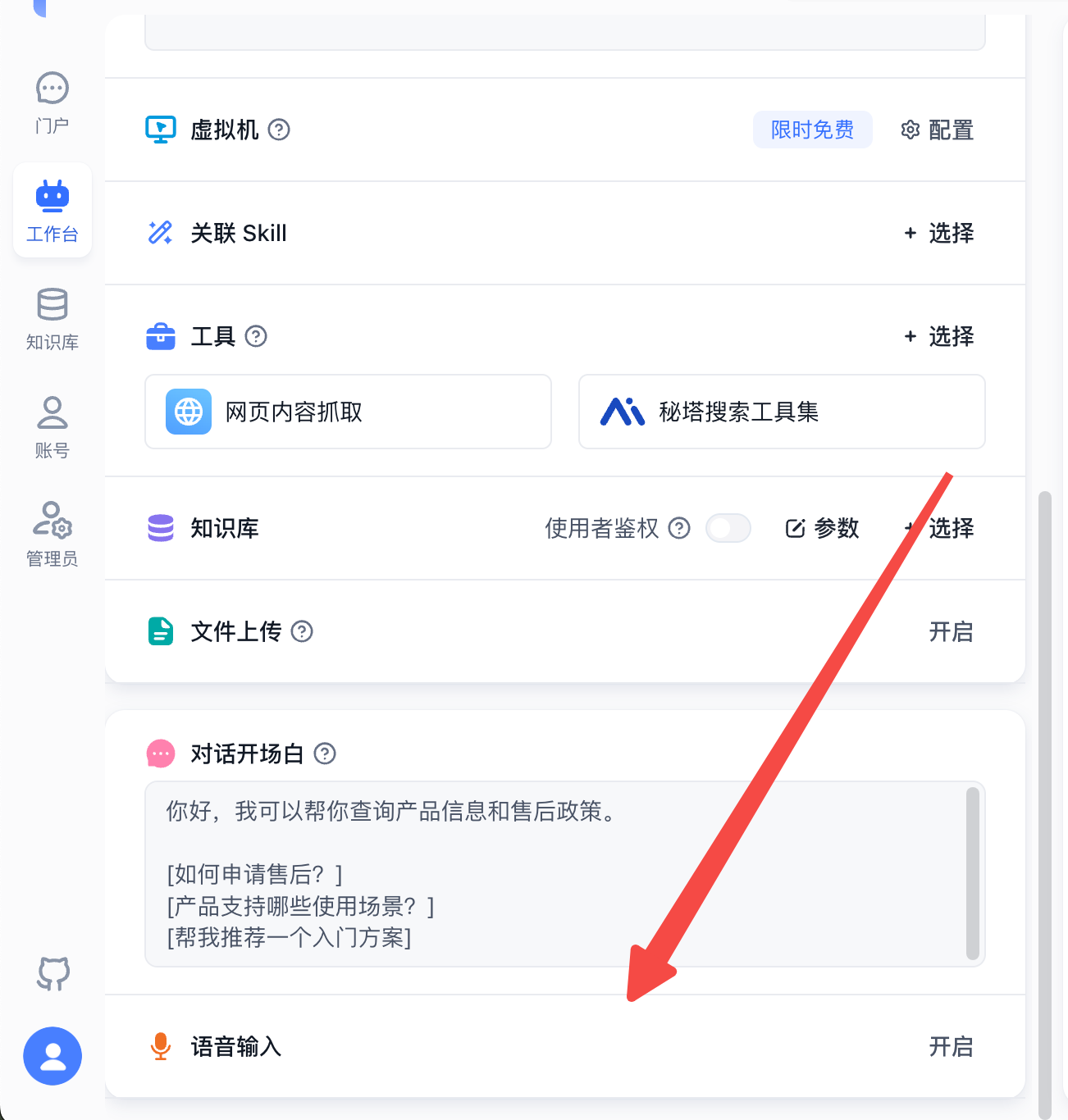
In the app editor, find Voice Input and click the settings button on the right to open the voice input configuration dialog.
 | 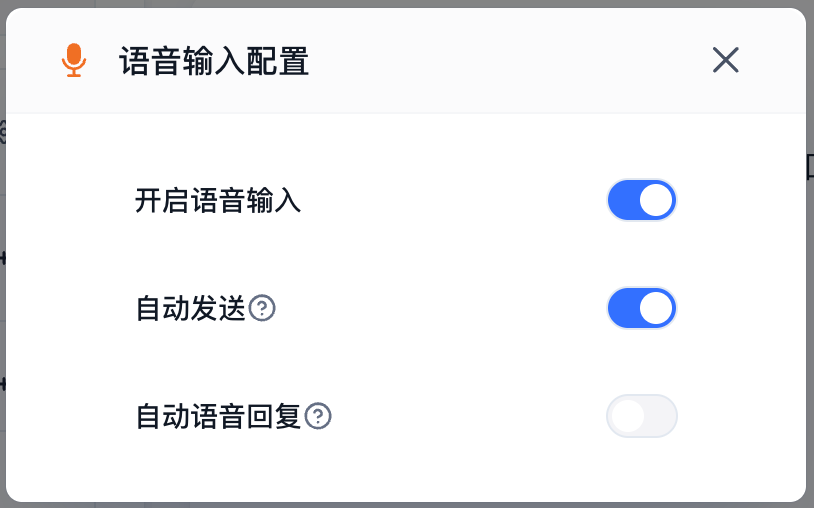 |
Enable Voice Input
After Voice Input is enabled, the chat input box shows a voice recording entry. Users can click it to start recording, and FastGPT converts the recording to text after it finishes.
If the browser or current environment does not support voice recording, the frontend will show a voice input unsupported message.
Auto Send
When Auto Send is enabled, FastGPT automatically sends the recognized text after recording finishes. Users do not need to click the send button manually.
If users should review the recognized text before sending, keep Auto Send disabled.
Auto Voice Response
When Auto Voice Response is enabled, questions sent through voice input will also receive AI responses that play automatically as audio.
This requires voice playback to be enabled. If voice playback is not enabled, the AI still returns a text response, but audio will not play automatically.
Recommendations
- Enable Voice Input for mobile or on-site scenarios to improve input efficiency.
- For scenarios that require high recognition accuracy, disable Auto Send so users can verify the recognized text first.
- For continuous voice interactions, enable both Auto Send and Auto Voice Response.
File Updated