
Assisted generation
Create or edit workflows in natural language, confirm the plan, and apply the generated workflow version to the canvas.
Use assisted generation to create a workflow from a natural-language description or update the Nodes, connections, and settings in an existing workflow. The feature is available in the Commercial Edition and Cloud Service.
Open assisted generation
Open the workflow app's editor and click Generate workflow with AI in the toolbar to open the workflow assisted generation panel.
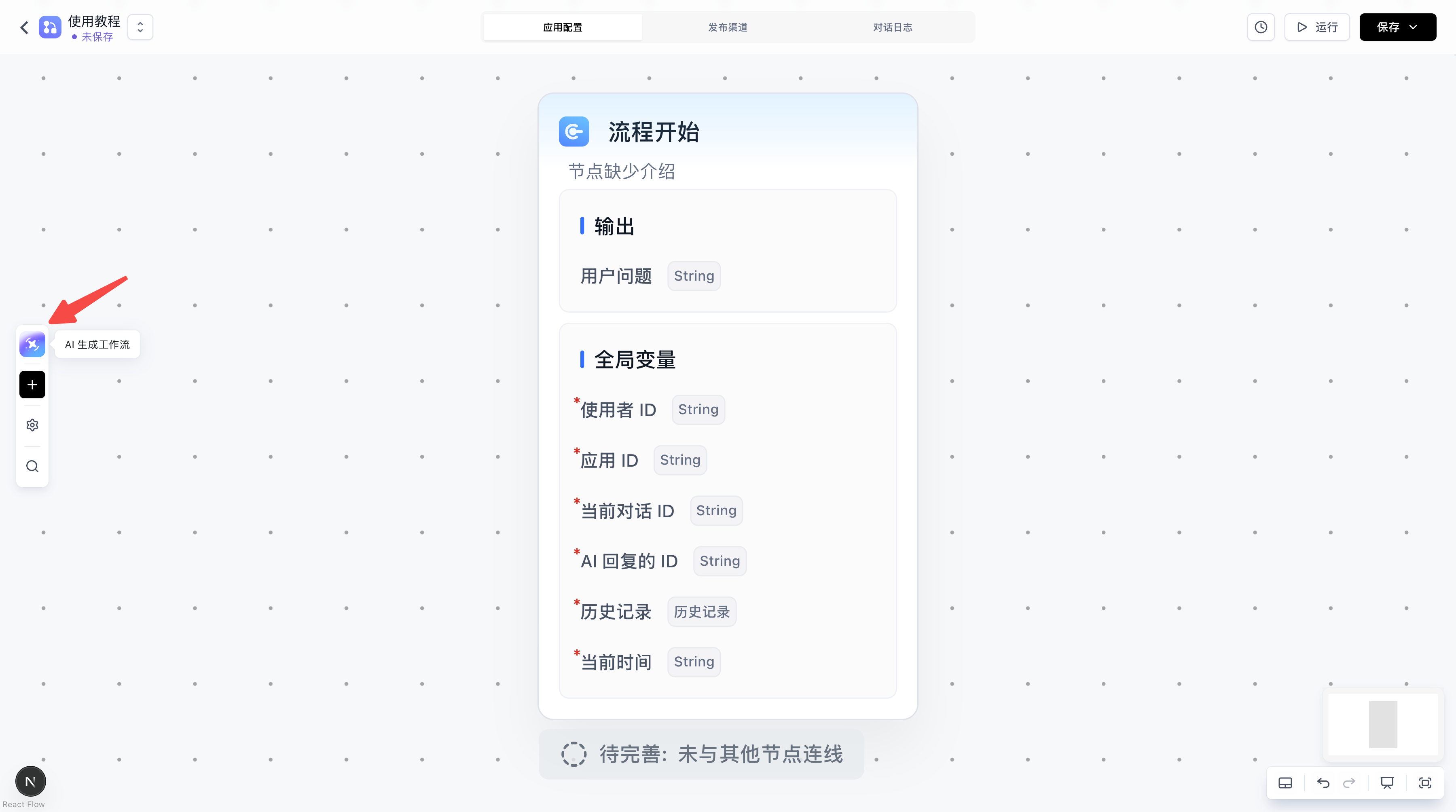
You need permission to edit the app, and your administrator must enable workflow assisted generation and the virtual machine (Sandbox). In the Community Edition, clicking the entry opens an overview of Commercial Edition features.
Describe your requirements
Describe the workflow's goal, inputs, processing steps, and expected output in the chat. For example:
Build a Dataset Q&A workflow: search the product documentation, then answer the user's question using the results. If no relevant information is found, ask the user for more details.
To update an existing workflow, describe what you want to change. For example:
Add question classification to the current workflow so that presales and support questions go through separate branches.
Specific requirements help the AI produce a plan that meets your needs. If the workflow needs a particular Dataset or Tool, mention it in your request.
Confirm the plan and apply the workflow
1. Confirm the workflow plan
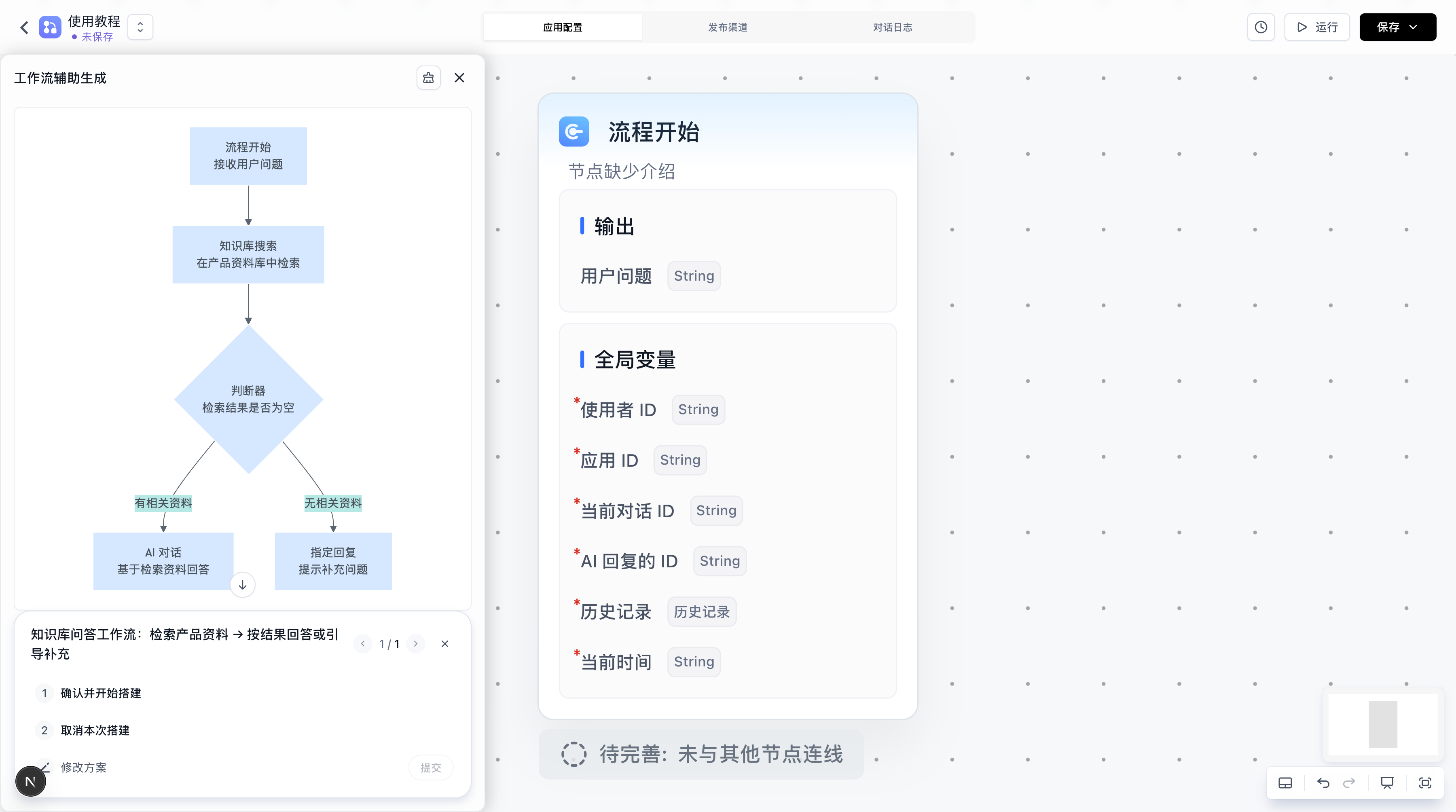
The AI first presents a flowchart and a plan for review. Check the processing steps, branch conditions, and outputs. You can confirm the plan or request changes before confirming.
2. Generate a workflow version
After you confirm the plan, the AI builds the workflow and validates its configuration. When generation is complete, a workflow version appears in the chat.
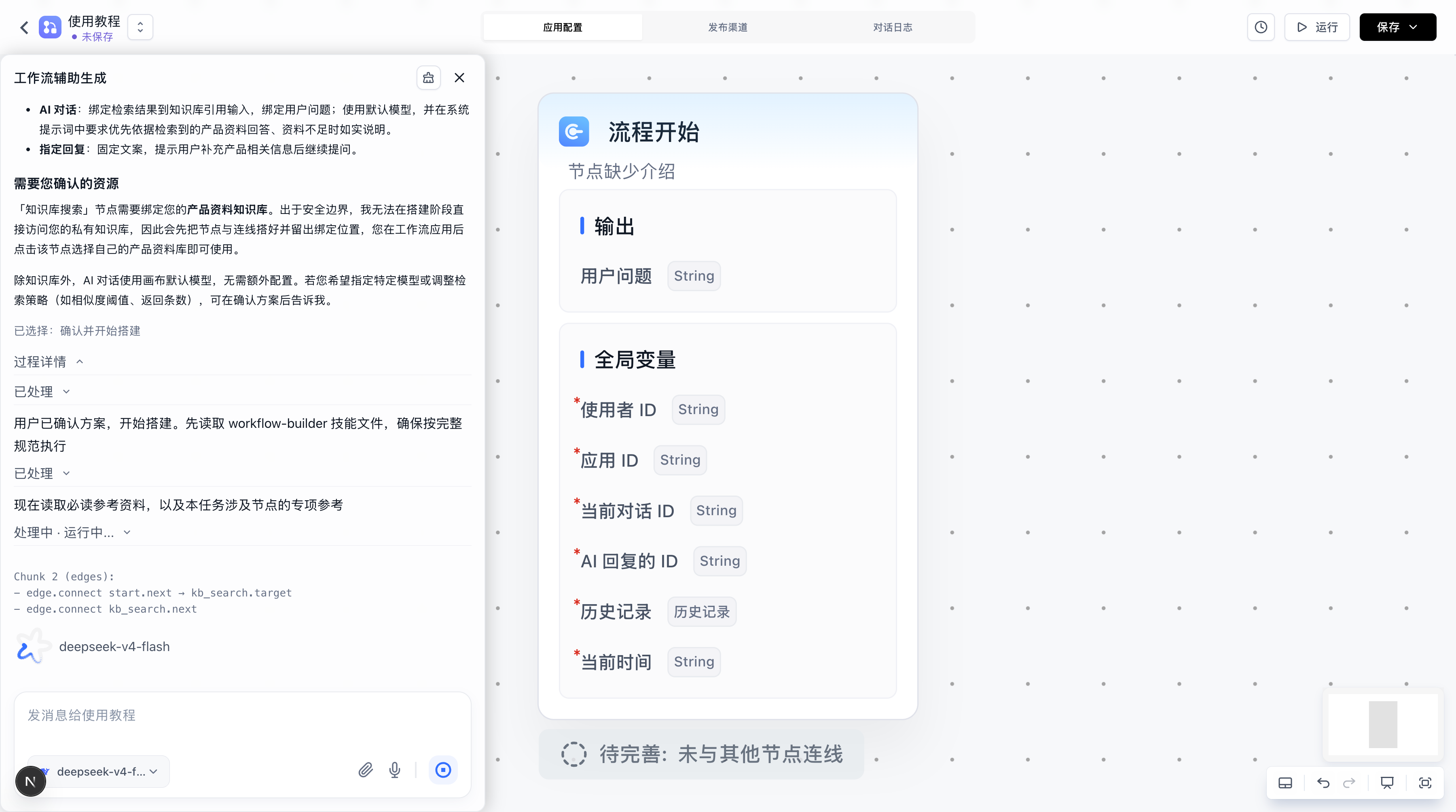
The generated result has not yet been applied to the canvas. Review it before deciding whether to apply it.
3. Apply to the canvas
Click Apply to canvas on the generated version to replace the current canvas content with that version and automatically arrange its Nodes. You can continue editing the workflow manually afterward.
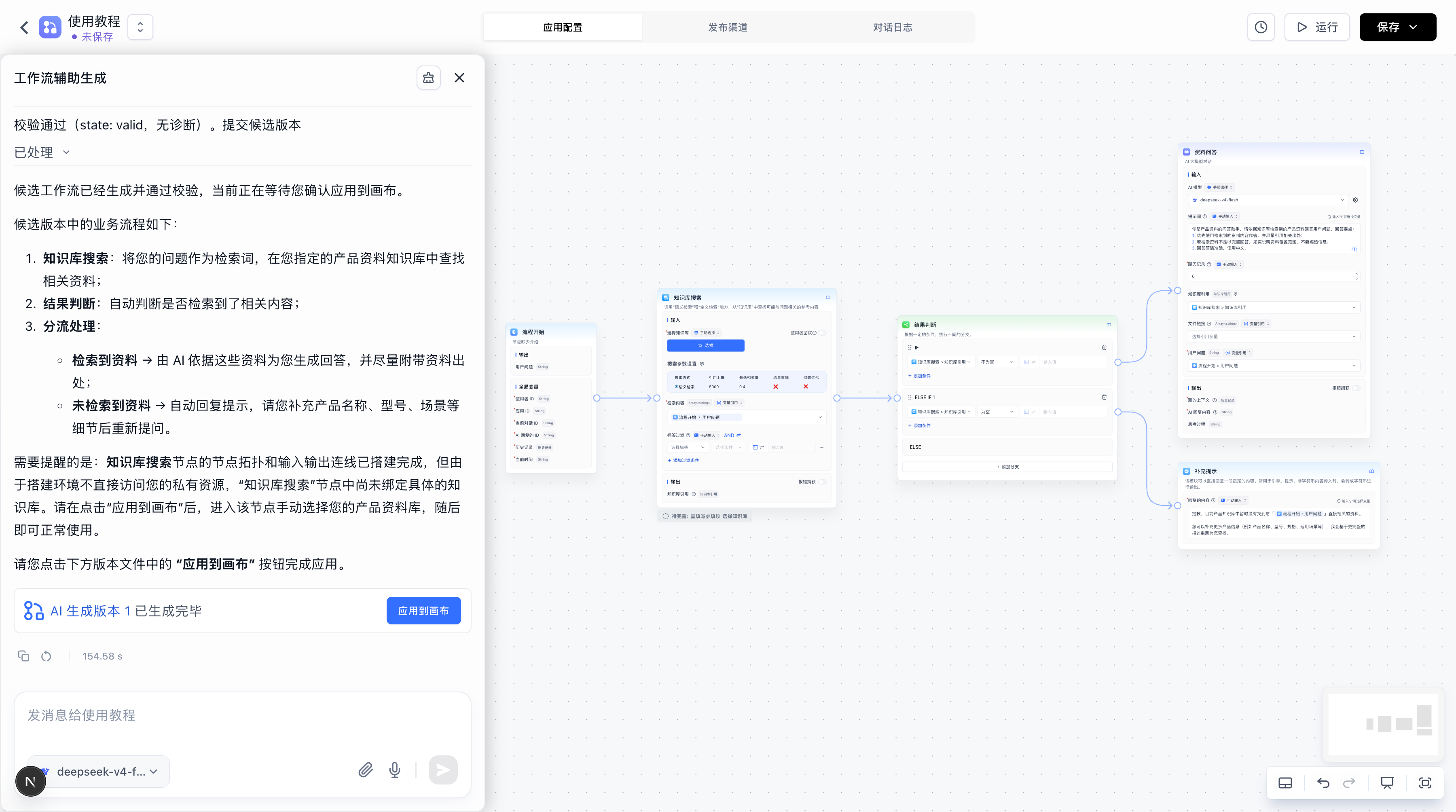
Check the model, Dataset, and Tool settings, then Debug the workflow. Once it works as expected, save and publish it. Generating a version or applying it to the canvas does not save or publish the workflow.
If a generated version shows Expired, generate a new version before applying it.