
Assisted Generation and Debugging
Detailed guide to generating Prompts via the AI Helper Bot and testing and debugging the Agent using the Chat Preview window and run details.
Assisted generation
An AI Helper Bot optimized for Agent V2 is integrated under the "Assisted generation" tab.
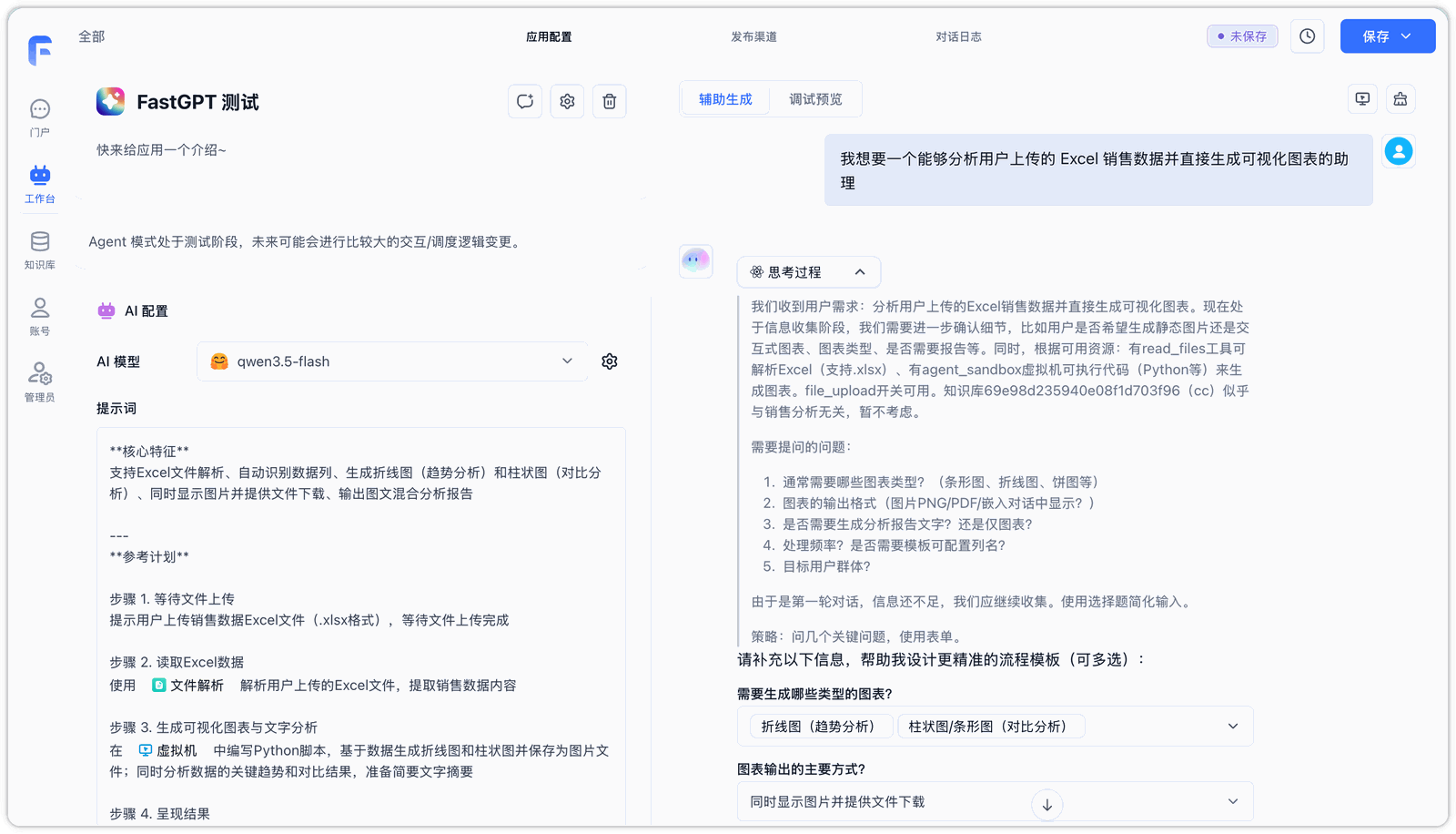
1. Smart Analysis and Scheme Optimization
The AI Helper Bot automatically reads the current model, datasets, and candidate tools configured in your left panel. You only need to describe your expectations in natural language (e.g., "I want an assistant that analyzes sales data uploaded in Excel and generates visual charts"), and the Helper Bot will automatically:
- Generate and Refine Structured System Prompts, setting reasonable boundaries and execution rules.
- Recommend the Most Suitable Tools or virtual machine commands for the task.
- Suggest Relevant Datasets to supplement domain background knowledge.
2. Automatic Apply
Once the Helper Bot generates the optimized scheme, the system will automatically write back the recommended prompts, tool list, associated datasets, and sandbox toggles to the left configuration panel. The entire process is fully automated without requiring manual clicks, streamlining the setup workflow.
Chat Preview
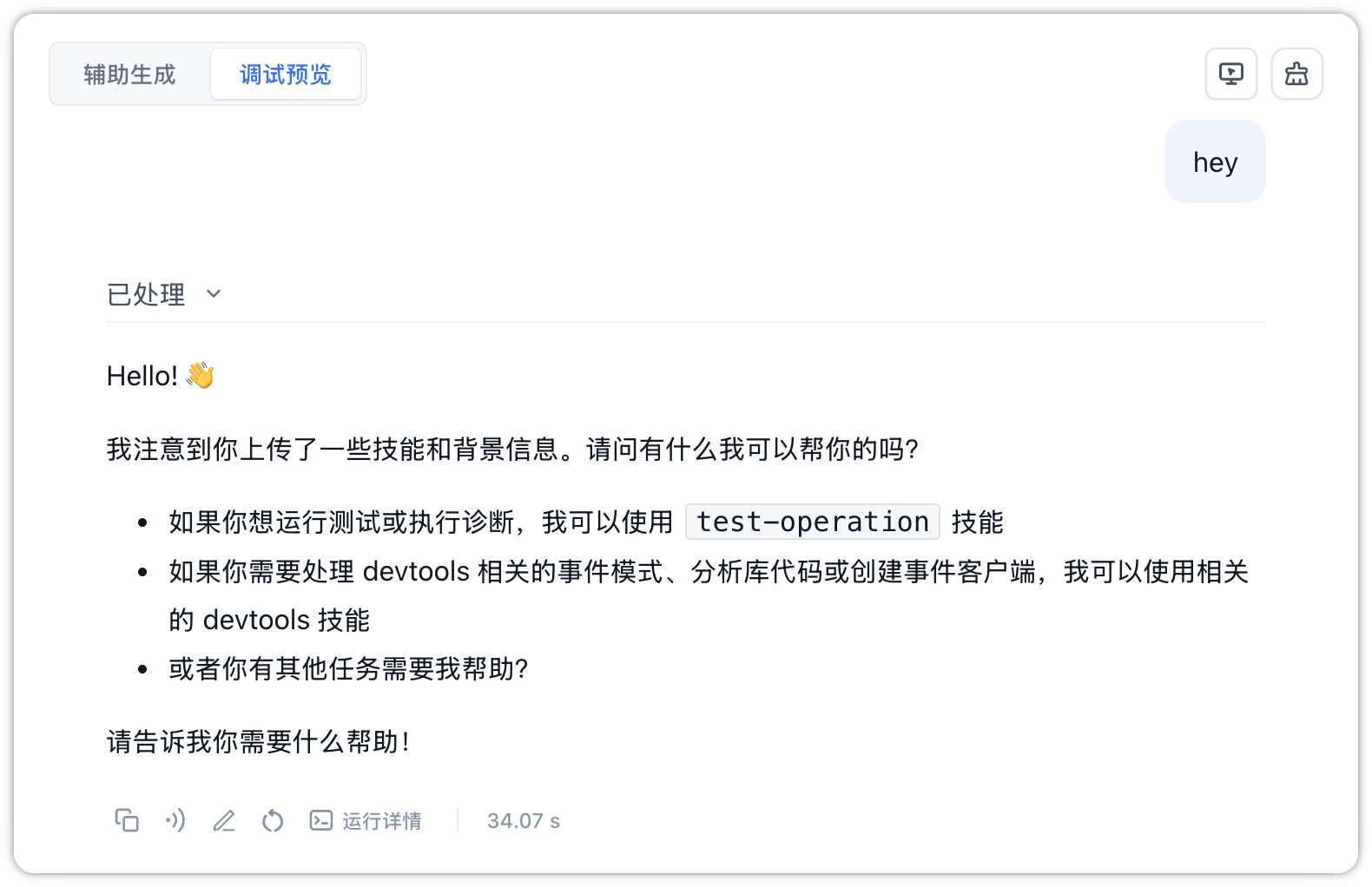
The "Chat Preview" tab provides a real-time conversational testing environment, allowing you to interact with the Agent as a real user and verify the app's effectiveness before publishing.
1. General Debugging
Regardless of whether the virtual machine is enabled, you can use the following general debugging features:
-
Restart: Click the "Restart" button in the upper right corner of the chat preview window to clear the current chat history and state, allowing you to start a fresh round of testing.
-
Bubble Action Bar and Run Details: Below each generated AI chat bubble, a row of auxiliary debugging tools is provided:
- Copy: Click to copy the text content of this AI response.
- Read Aloud: Click to convert the response text into speech and play it back.
- Annotation: Lets developers annotate the question and expected answer, saving them to a designated Dataset to improve future responses.
- Retry: Triggers the AI to regenerate the response for the last user input.
- Run Details: Click to expand the tree-structured decision-making chain. This logs the complete LLM reasoning process, internal plan updates, and tool call logs. It also shows the unique Request ID, model name, response duration, and precise points consumed for performance auditing and cost control.
- Response Duration (e.g.,
34.07 s): Displays the total time in seconds spent from sending the request to receiving the full response.
-
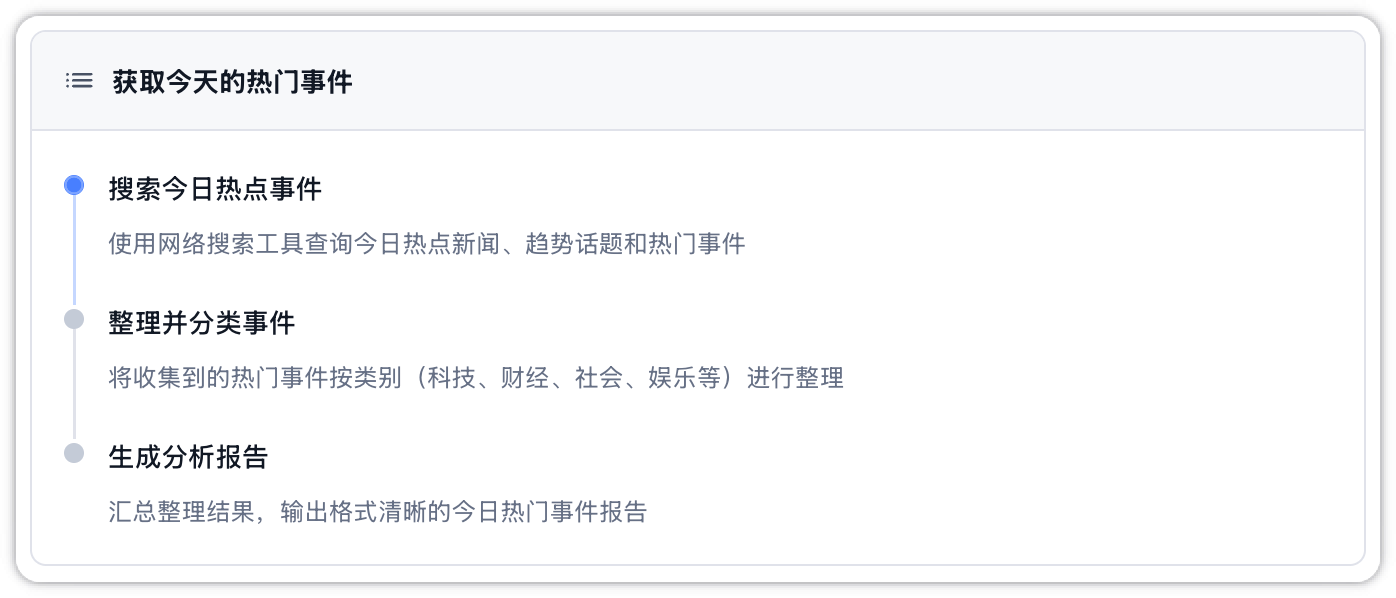
Plan Card: If the Agent initiates planning for a complex task, the chat interface will stream a visual "Plan Card." Color-coded steps and animations indicate the progress of each step (In Progress, Completed, Pending, Blocked). If a step is blocked, the card displays the cause of the blockage, helping you optimize your System Prompt or troubleshoot tool configurations.
2. Virtual Machine Debugging
For details on using the virtual machine sandbox for file management, dependency installations, and self-correcting debugging workflows, please refer to Virtual Machine.
File Updated