
Lark Bot Integration
FastGPT Lark Bot Integration Tutorial
Starting from version 4.8.10, FastGPT commercial edition supports direct Lark bot integration without additional APIs.
1. Create a Lark App
Creating a free test enterprise makes debugging easier.
- Create a custom enterprise app in the Lark Open Platform developer console.
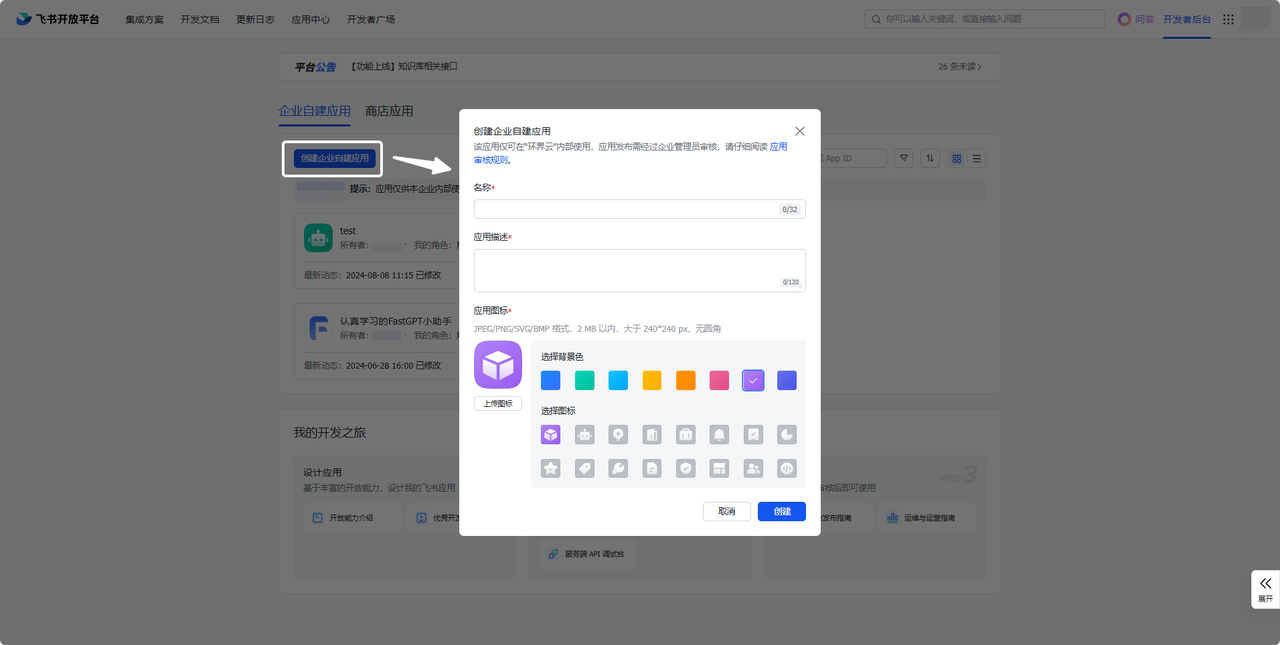
Add a Bot capability to the app.
2. Create a Publishing Channel in FastGPT
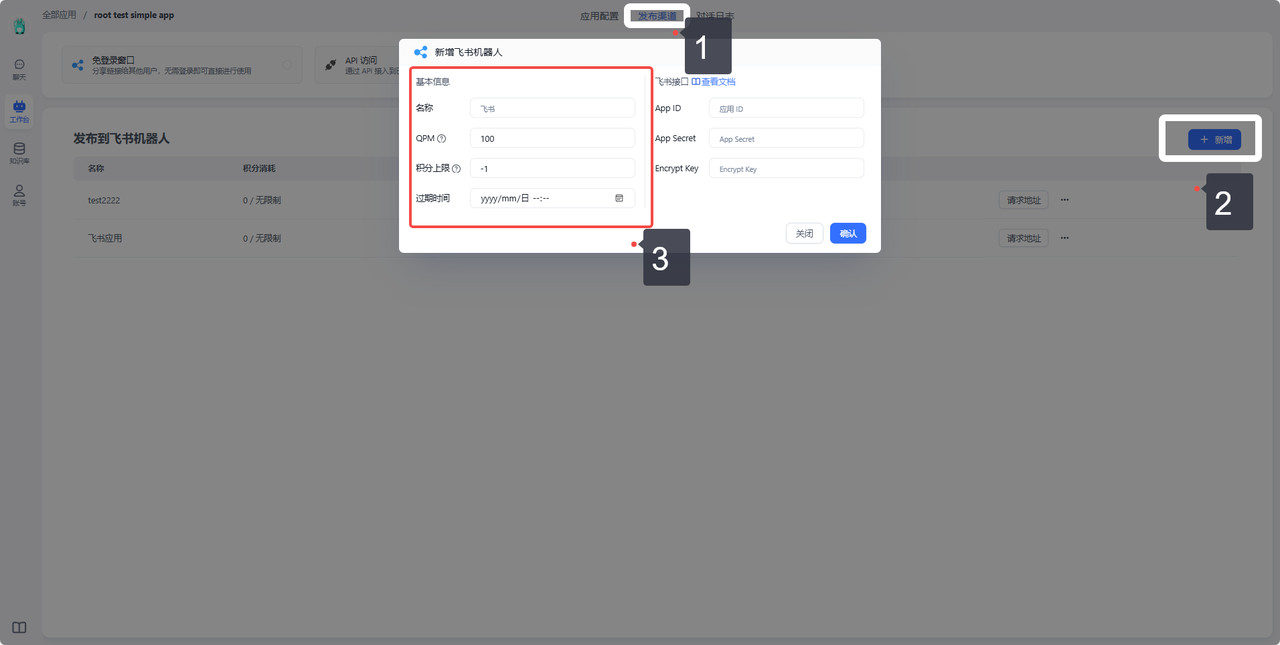
In FastGPT, select the app you want to integrate. On the Publishing Channels page, create a new Lark bot publishing channel and fill in the basic information.
3. Get App ID and App Secret
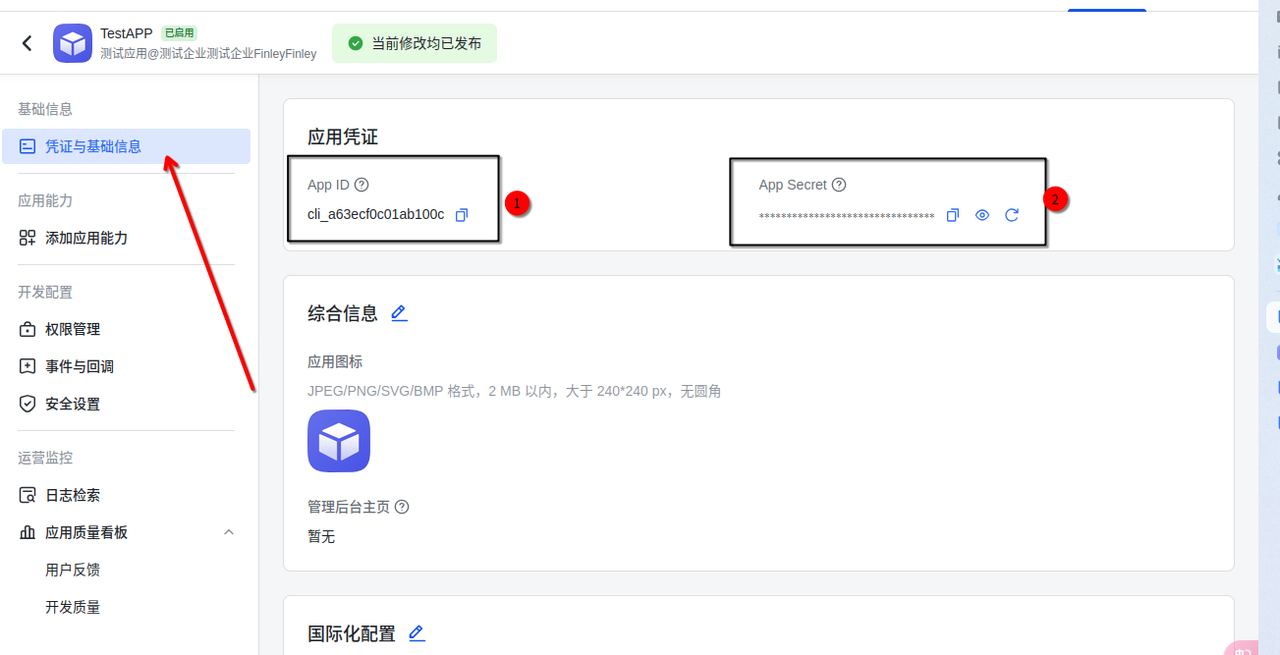
In the Lark Open Platform developer console, find the App ID and App Secret for the custom enterprise app you just created, and enter them in the FastGPT publishing channel dialog.
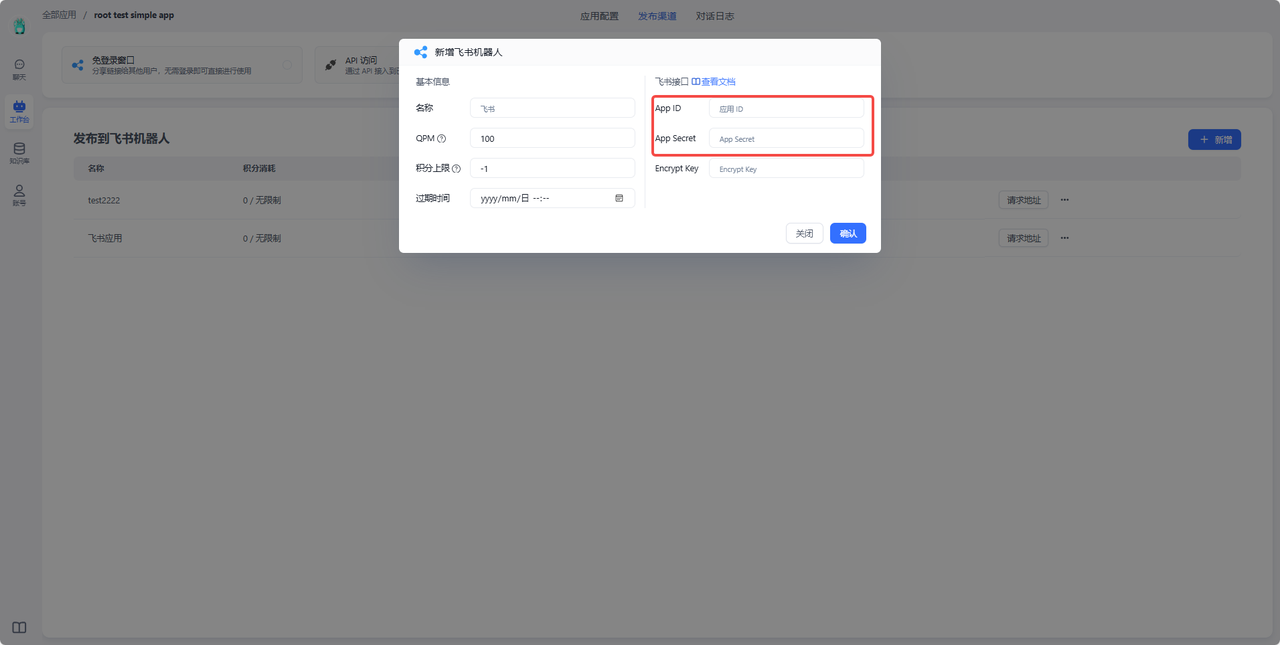
Enter both parameters in the FastGPT configuration dialog.
(Optional) In the Lark Open Platform developer console, go to Events & Callbacks -> Encryption Strategy to get the Encrypt Key, and enter it in the Lark bot integration dialog.
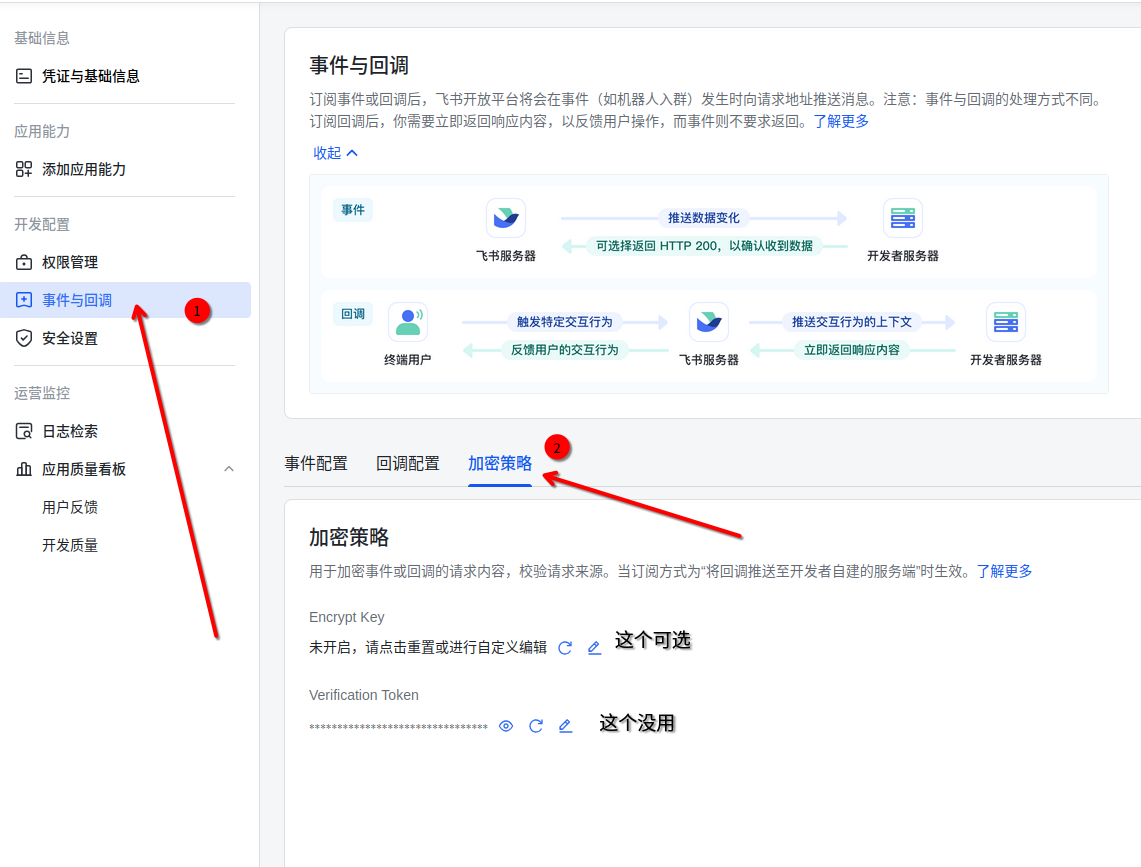
The Encrypt Key encrypts communication between Lark servers and FastGPT. If using HTTPS, the Encrypt Key is not needed. If using HTTP, the Encrypt Key is recommended. The Verification Token is generated by default for source verification. However, we use Lark's officially recommended, more secure verification method, so this configuration can be ignored.
4. Configure Callback URL
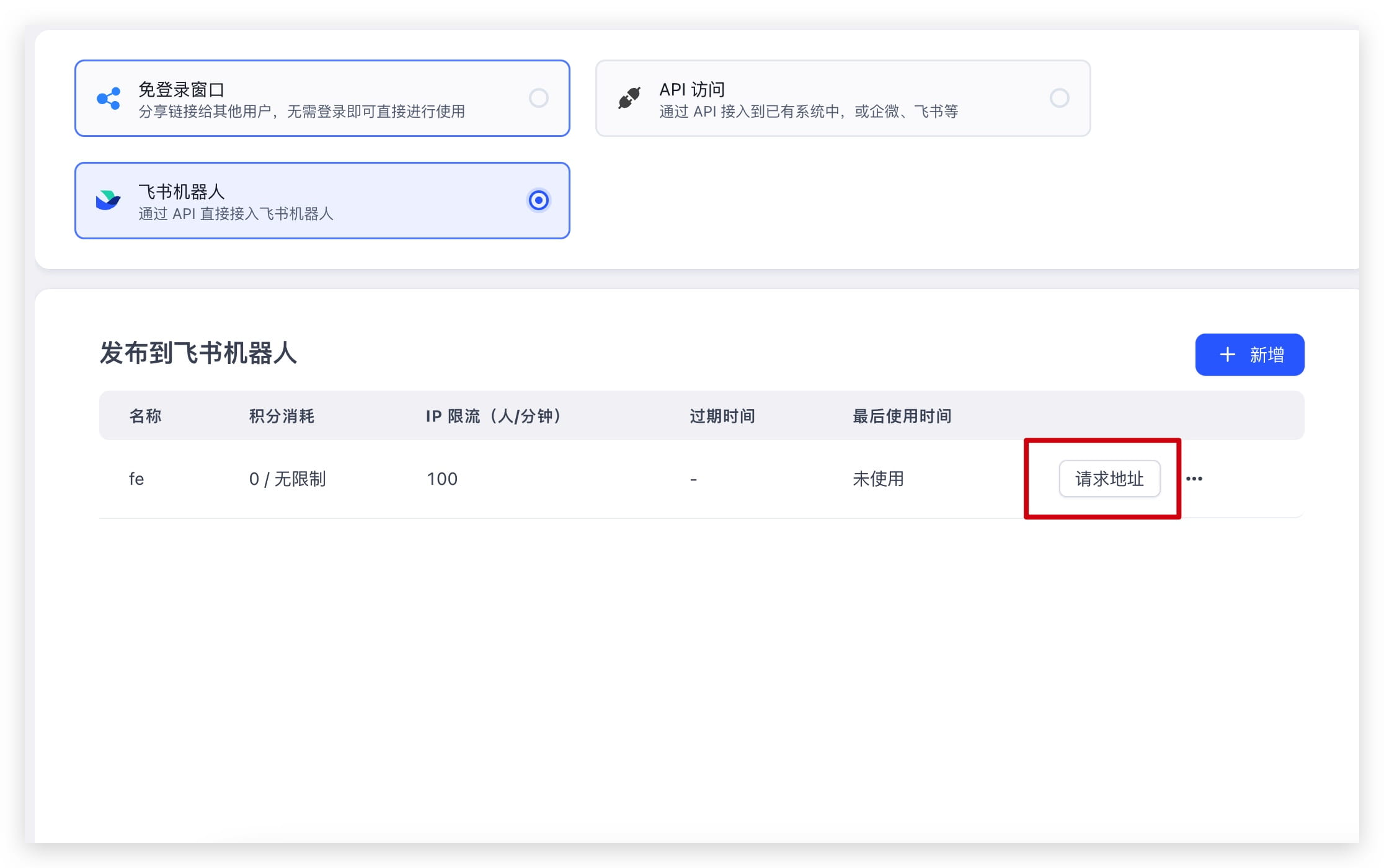
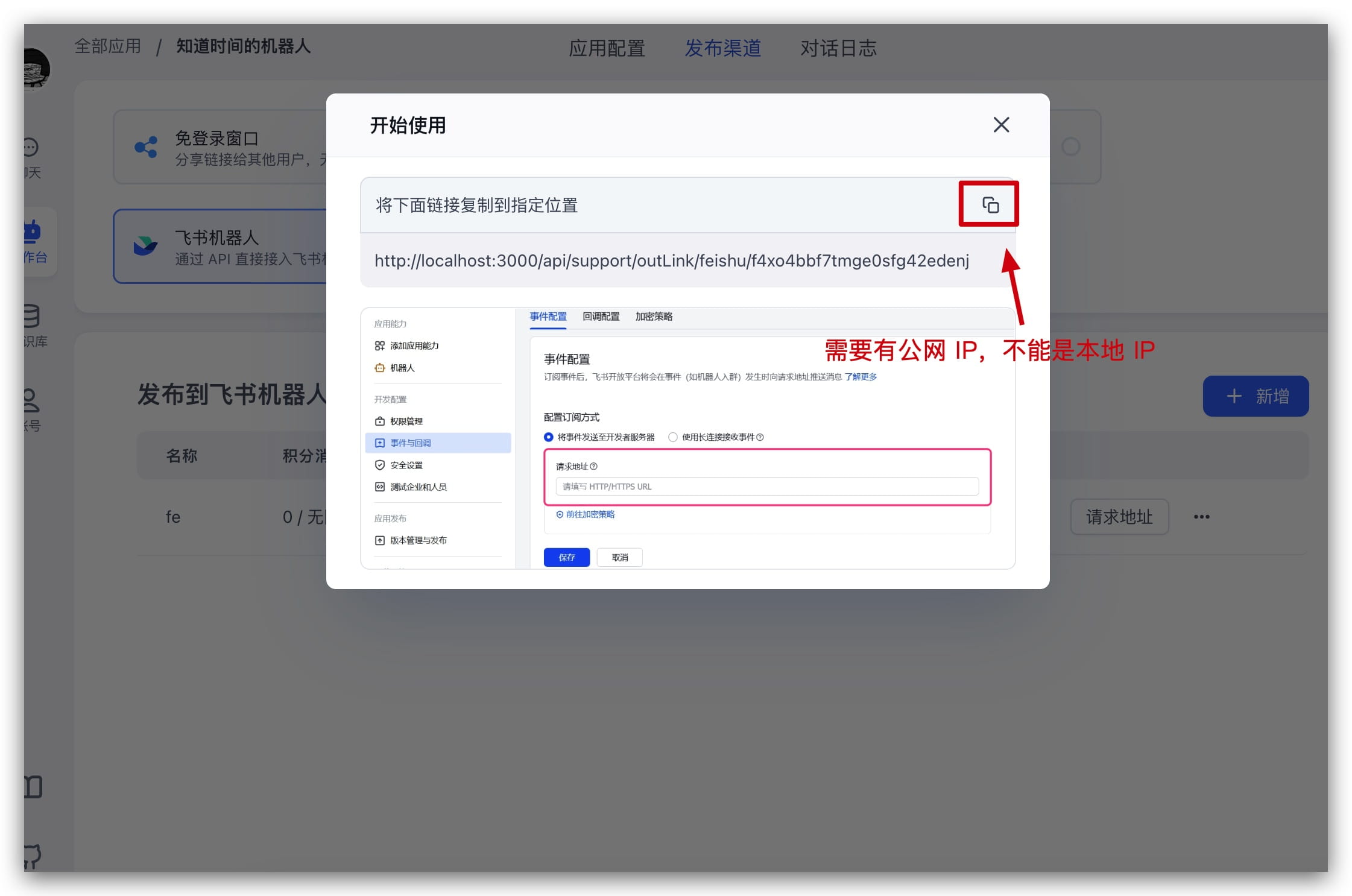
After creating the publishing channel, click Request URL and copy the corresponding request URL.
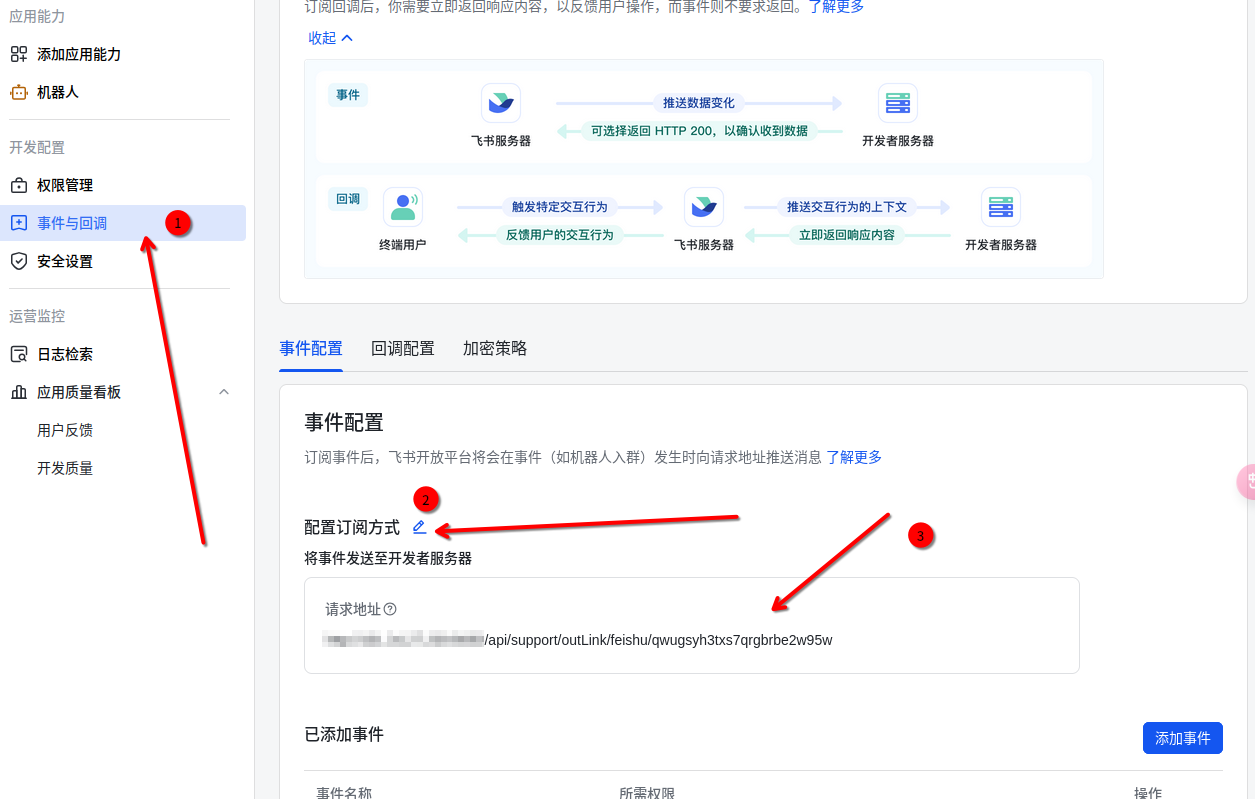
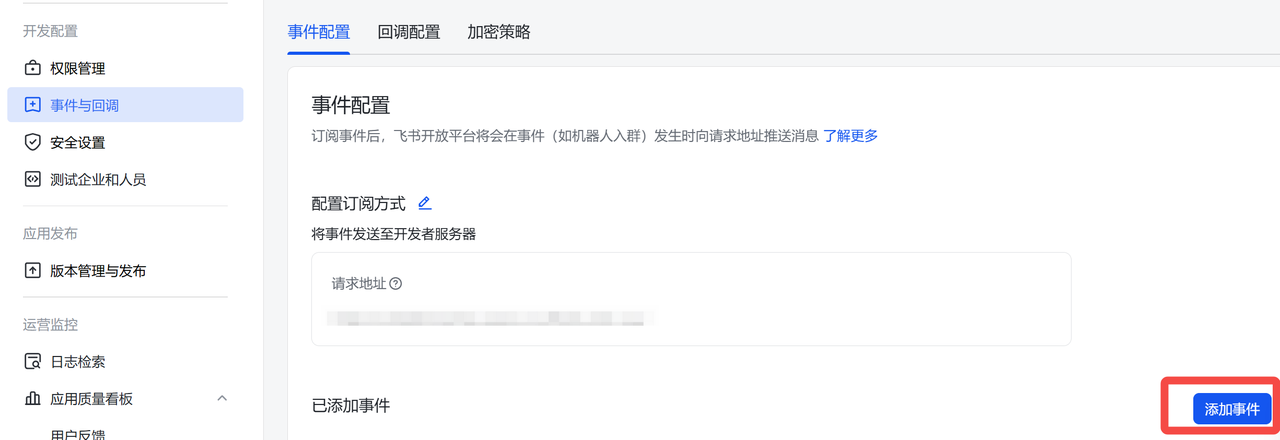
In the Lark console, click Events & Callbacks on the left sidebar, click the edit icon next to Configure Subscription Method, and paste the copied request URL into the input field.
 |  |  |
5. Configure Bot Callback Events and Permissions
- Add the
Receive Messageevent
On the Events & Callbacks page, click Add Event.
Search for Receive Message, or directly search for im.message.receive_v1, find the Receive Message v2.0 event, check it, and click Confirm Add.
After adding the event, add two permissions: click the corresponding permission, and a popup will prompt you to add permissions. Add the two permissions shown above.
 | 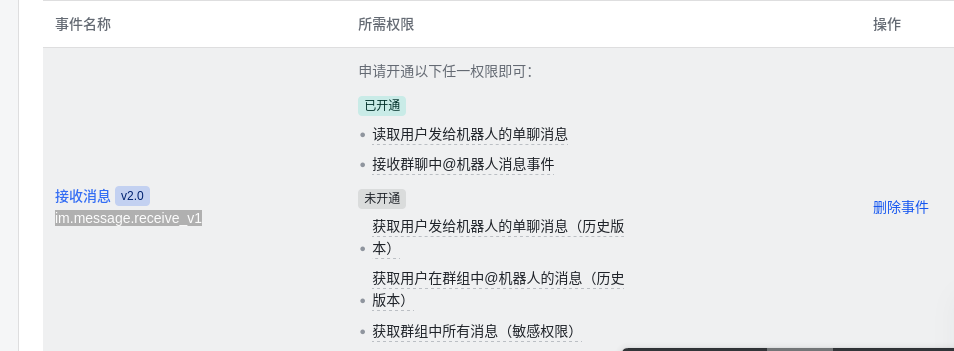 |
It is not recommended to enable the two "legacy versions" shown above -- use the new version permissions instead.
- If "Read messages users send to the bot in private chats" is enabled, private messages sent to the bot will be forwarded to FastGPT
- If "Receive @bot message events in group chats" is enabled, messages @mentioning the bot in group chats will be forwarded to FastGPT
- If (not recommended) "Get all messages in groups" is enabled, all group chat messages will be forwarded to FastGPT
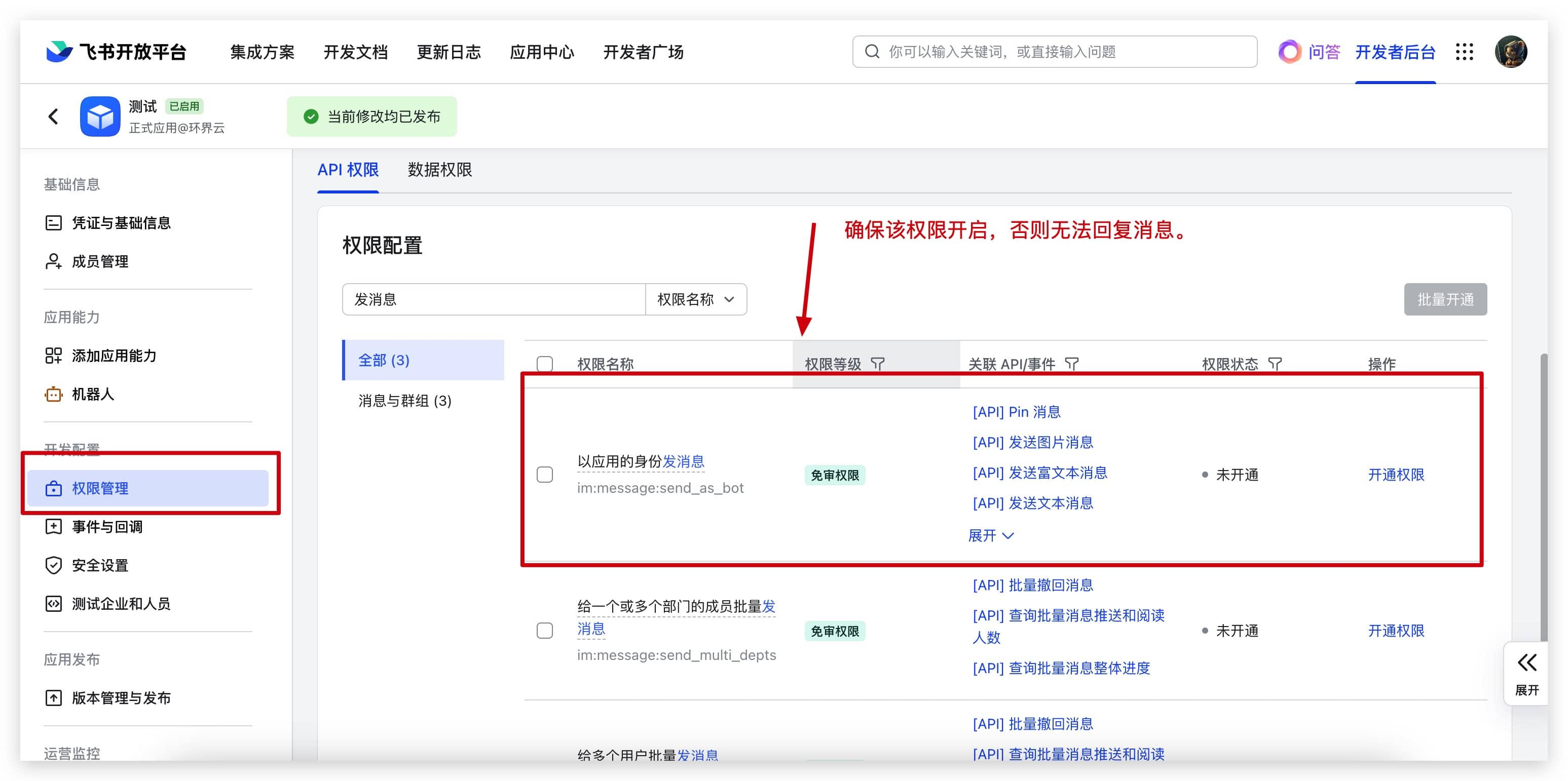
6. Configure Reply Message Permission
In the Lark console, click Permission Management on the left sidebar, enter send message in the search box, find the Send messages as the app permission, and enable it.
7. Publish the Bot
Click Version Management & Publishing on the left side of the Lark console to publish the bot.
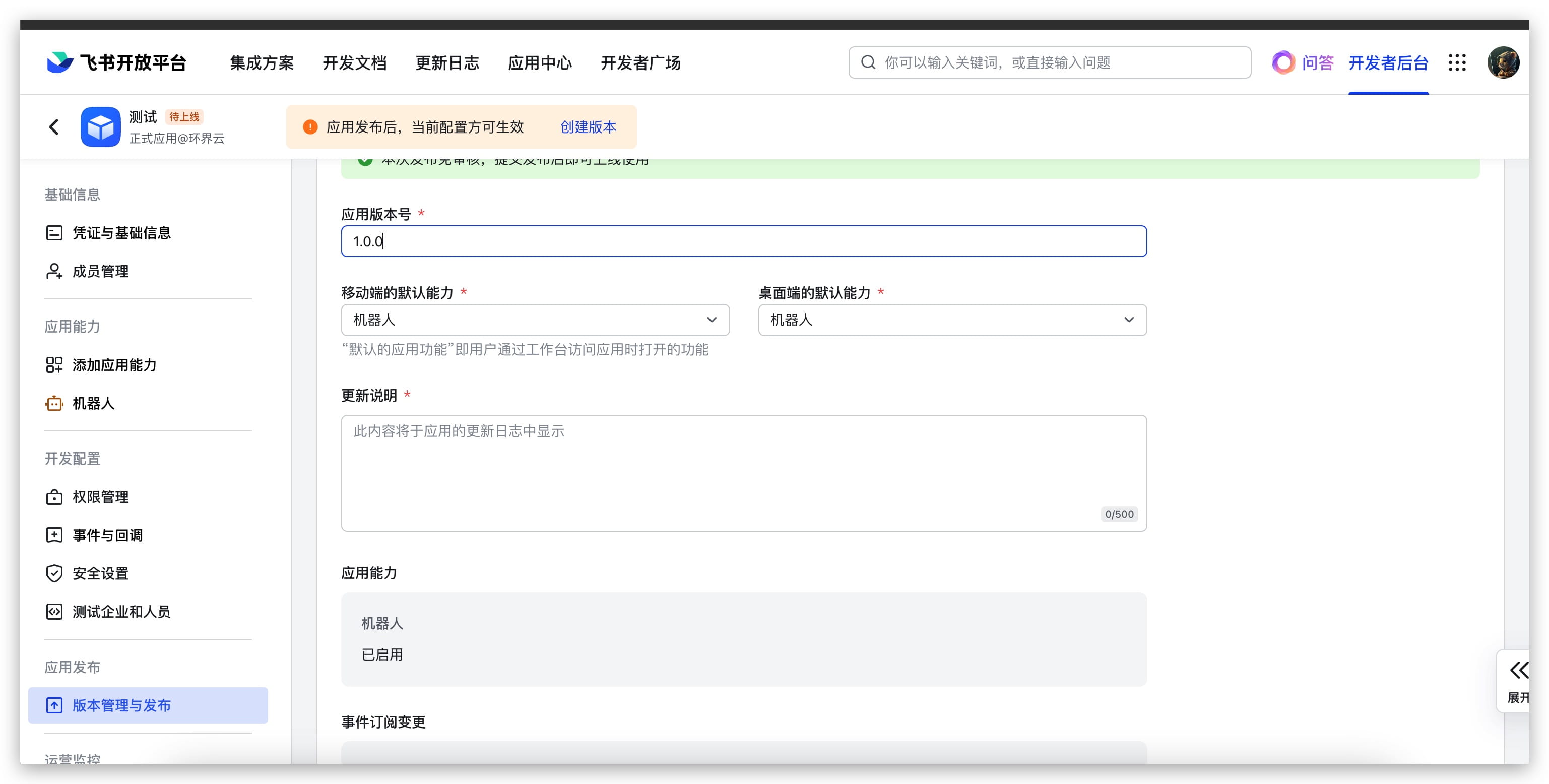
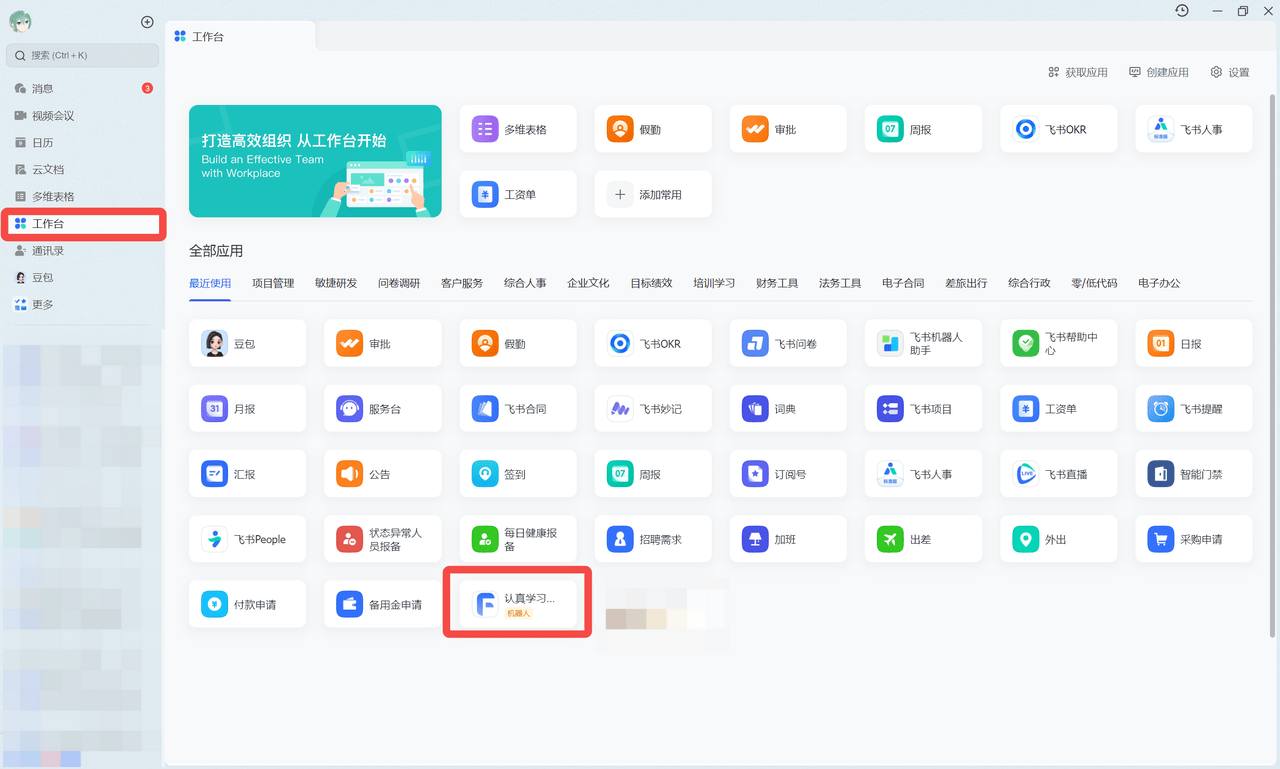
You can then find your bot in the workspace. Next, add the bot to a group or chat with it privately.
FAQ
Sent a message but no response
- Check if the Lark bot callback URL, permissions, etc. are configured correctly.
- Check FastGPT chat logs to see if there is a corresponding question record.
- If there is a record but Lark does not respond, the bot is missing the required permissions.
- If there is no record, the app may have encountered an error. Try the simplest bot first. (Lark bots cannot accept global variables, files, or image content as input)
How to start a new chat history
Lark bot chat history chatId comes from several sources:
- Private chat window
- Individual topics in Lark topic groups
- In group chats, composed of group ID + personal ID.
To reset your chat history, send a Reset message to the bot (case-sensitive), and the bot will start a new chat history.
File Updated