
Integrating ChatGLM2 and M3E Models
Integrating private ChatGLM2 and m3e-large models with FastGPT
Introduction
FastGPT uses OpenAI's LLM and embedding models by default. For private deployment, you can use ChatGLM2 and m3e-large as replacements. The following method was contributed by community user @不做了睡大觉. This image bundles both M3E-Large and ChatGLM2-6B models, ready to use out of the box.
Deploy the Image
- Image:
stawky/chatglm2-m3e:latest - China mirror:
registry.cn-hangzhou.aliyuncs.com/fastgpt_docker/chatglm2-m3e:latest - Port: 6006
# Set the security token (used as the provider key in AI Proxy)
Default: sk-aaabbbcccdddeeefffggghhhiiijjjkkk
You can also set it via the environment variable: sk-key. Refer to Docker documentation for how to pass environment variables.
Connect to OneAPI
For the current AI Proxy setup, see the Model Configuration Guide. The legacy One API screenshot below illustrates the equivalent channel settings.
Add model connections for both models, using the deployed service URL and its security token. Register m3e for embeddings and chatglm2 for chat. In the One API interface shown below, use Custom Channel, enter the service in Base URL, and add each name to the custom model list.

Here, m3e is used as the embedding model and chatglm2 as the language model.
Test
curl examples:
curl --location --request POST 'https://domain/v1/embeddings' \
--header 'Authorization: Bearer sk-aaabbbcccdddeeefffggghhhiiijjjkkk' \
--header 'Content-Type: application/json' \
--data-raw '{
  "model": "m3e",
  "input": ["What is Laf?"]
}'
curl --location --request POST 'https://domain/v1/chat/completions' \
--header 'Authorization: Bearer sk-aaabbbcccdddeeefffggghhhiiijjjkkk' \
--header 'Content-Type: application/json' \
--data-raw '{
"model": "chatglm2",
"messages": [{"role": "user", "content": "Hello!"}]
}'Set Authorization to sk-aaabbbcccdddeeefffggghhhiiijjjkkk. The model field should match the custom model name you entered in One API.
Integrate with FastGPT
Edit the config.json file. Add chatglm2 to llmModels and M3E to vectorModels:
"llmModels": [
  // Other chat models
  {
    "model": "chatglm2",
    "name": "chatglm2",
    "maxToken": 8000,
    "price": 0,
    "quoteMaxToken": 4000,
    "maxTemperature": 1.2,
    "defaultSystemChatPrompt": ""
  }
],
"vectorModels": [
    {
      "model": "text-embedding-ada-002",
      "name": "Embedding-2",
      "price": 0.2,
      "defaultToken": 500,
      "maxToken": 3000
    },
    {
      "model": "m3e",
      "name": "M3E (for testing)",
      "price": 0.1,
      "defaultToken": 500,
      "maxToken": 1800
    }
],
Usage
M3E model:
-
Select the M3E model when creating a Dataset.
Note: once selected, the embedding model for the Dataset cannot be changed.

-
Import data
-
Test search
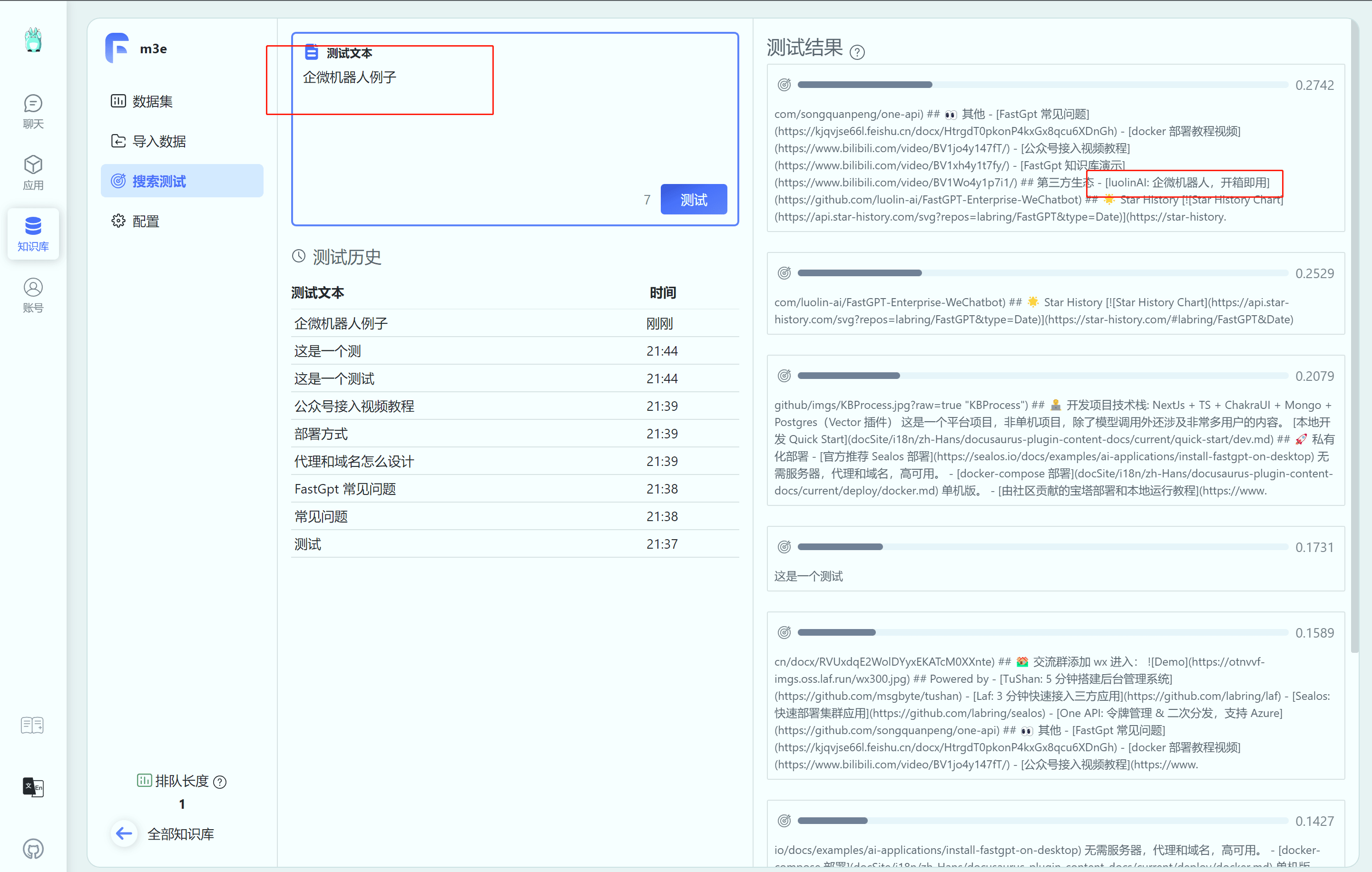
-
Bind the Dataset to an app
Note: an app can only bind Datasets that use the same embedding model -- cross-model binding is not supported. You may also need to adjust the similarity threshold, as different embedding models produce different similarity (distance) scores. Test and tune accordingly.

ChatGLM2 model:
Simply select chatglm2 as the model.
Last updated