
Model Configuration
FastGPT model configuration guide
Introduction
FastGPT uses the AI Proxy service to connect to different model providers. AI Proxy also provides load balancing, model logging, and analytics dashboards to help you monitor model usage.
Notes:
Only one speech recognition model can be active at a time, so you only need to configure one.
The system requires at least one language model and one embedding model to function properly.
Architecture Diagram
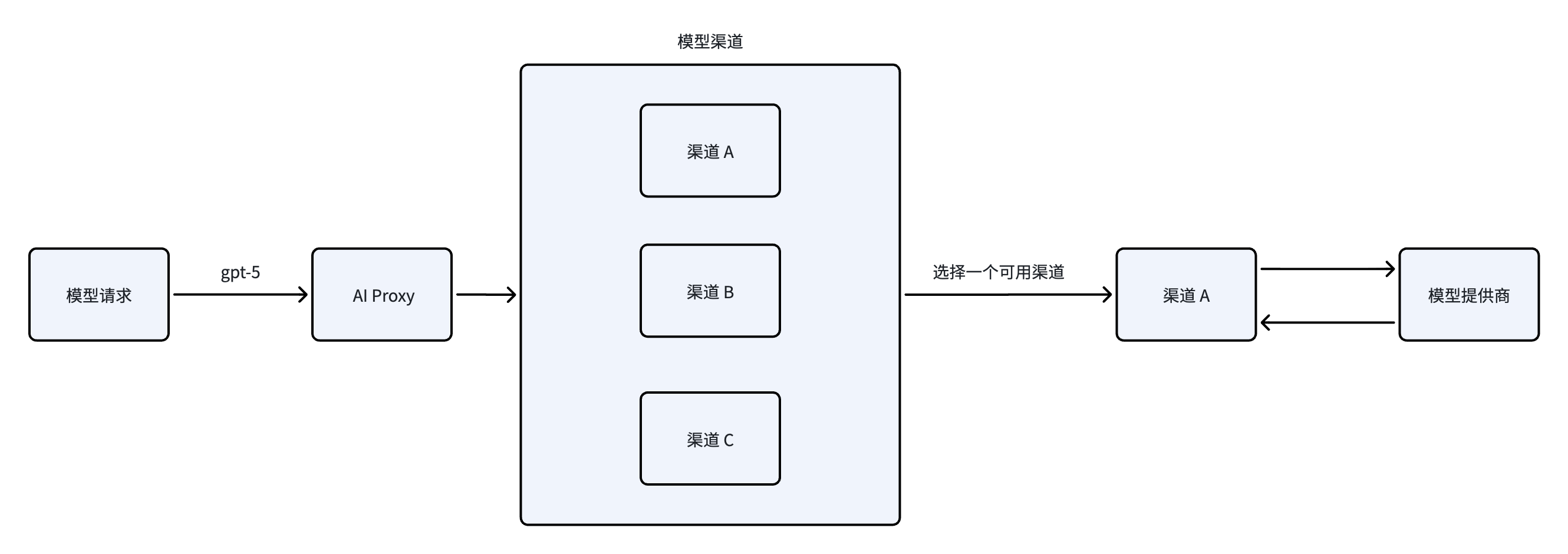
When FastGPT requests a model such as gpt-5, AI Proxy finds the channels configured for that model, selects an available channel, and forwards the request to its upstream provider. The provider's response returns through AI Proxy to FastGPT.
Model Types
- Language Models - Text-based conversations; multimodal models also support image recognition.
- Embedding Models - Index text chunks for semantic text retrieval.
- Rerank Models - Reorder retrieval results to optimize search ranking.
- Text-to-Speech (TTS) - Convert text to audio.
- Speech-to-Text (STT) - Convert audio to text.
Key Terminology
- Model ID: The value of the
modelfield in the API request body. Must be globally unique. - Model Name: The display name of the model, which can be customized.
- Model Channel: A connection configured for a model provider and API protocol, such as OpenAI, Anthropic, or Google. Most self-hosted channels use the OpenAI protocol. You can configure the same model in multiple channels to enable load balancing.
- Custom Request URL / Key: Allows you to bypass Model Channels and send requests directly to a custom endpoint. You need to provide the full request URL and token. This is generally unnecessary and harder to manage.
Adding Channels and Models
You can configure models from Admin - Model provider in FastGPT.
1. Create a Channel
Switch to the Model Channels tab. Note that you can only add models that already exist in Model Configuration. The system only includes mainstream models by default — if you need additional models, add them in Model Configuration first.

Click "Add Channel" in the top-right corner to open the channel configuration page.
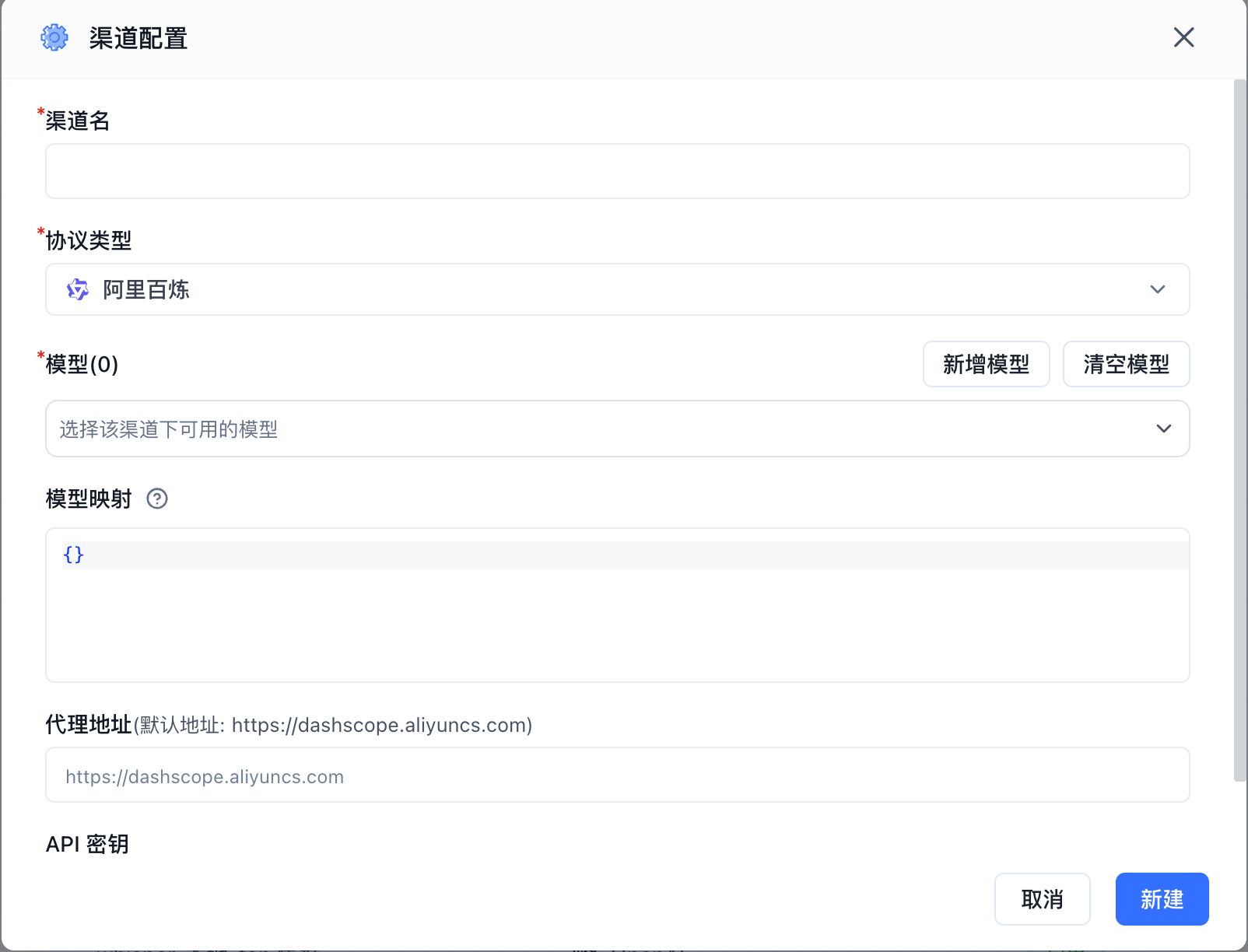
Using Alibaba Bailian models as an example:
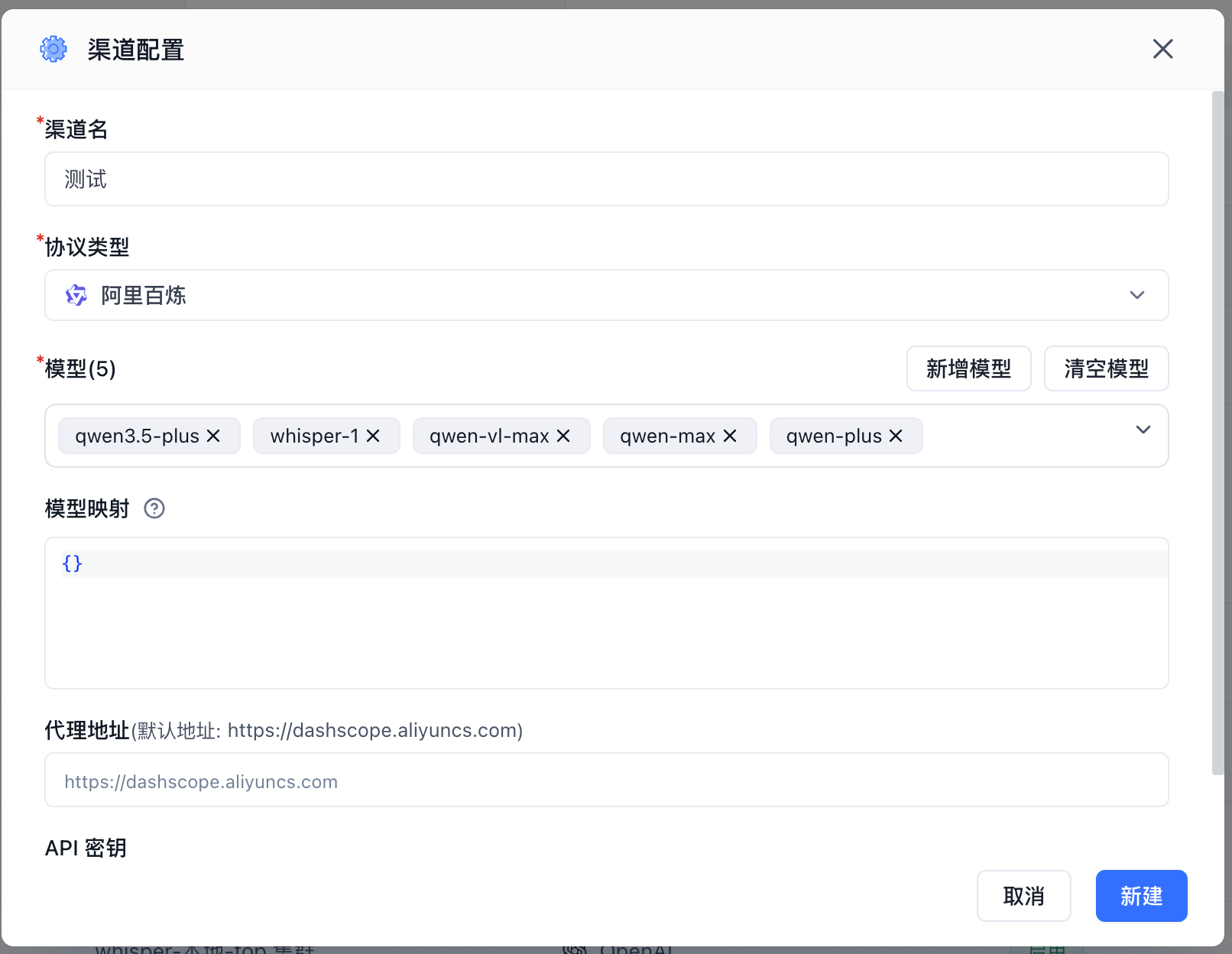
- Channel Name: A display label for the channel, used for identification only.
- Protocol Type: The API protocol for the model. Generally, select the provider that offers the model. Most providers support the OpenAI protocol, so you can also choose OpenAI as the protocol type.
- Models: The specific models available in this channel. The system includes popular models by default. If the model you need isn't in the dropdown, click "Add Model" to add a custom model.
- Model Mapping: Maps the model name in FastGPT requests to the actual model name at the provider. For example:
{
  "gpt-4o-test": "gpt-4o"
}
In FastGPT, the model is gpt-4o-test, and requests to AI Proxy also use gpt-4o-test. When AI Proxy forwards the request upstream, the actual model value becomes gpt-4o.
- Proxy URL: Do not enter the full model request URL. Enter the
BaseUrlinstead, and check whether/v1needs to be appended. - API Key: The API credentials obtained from the model provider. Some providers require multiple keys — follow the on-screen prompts to enter them.
Click "Add" to save. The new channel will appear under "Model Channels".

2. Channel Testing
You can test the channel to verify that the configured models are working properly.

Click "Model Test" to see the list of configured models, then click "Start Test".

Once testing completes, you'll see the results and response times for each model.

3. Enable Models
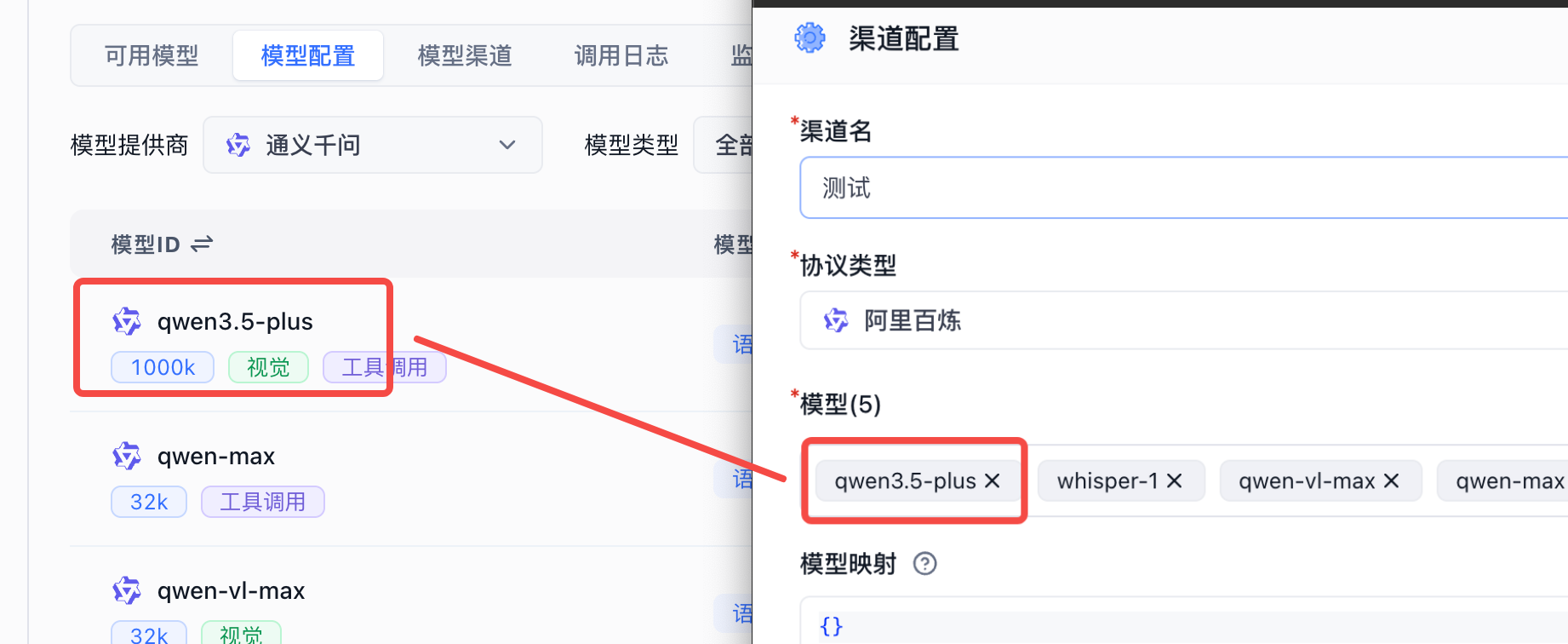
The system includes models from major providers by default. If you're not familiar with the configuration, simply click Enable. The Model ID corresponds to the Model in Model Channels.
Click "Enable" to activate the model.
| Enable Models | Model ID Mapping |
|---|---|
 |  |
4. Test Models
FastGPT provides simple tests for each model type on the UI to verify that models are working correctly. Each test sends an actual request using a template.

Model Configuration
Edit Model Configuration
Click the gear icon next to a model to open its configuration. Different model types have different configuration options.
 |  |
Add a Custom Model
If the built-in models don't meet your needs, you can add custom models. If the Model ID matches an existing built-in model ID, it will be treated as a modification rather than a new model.
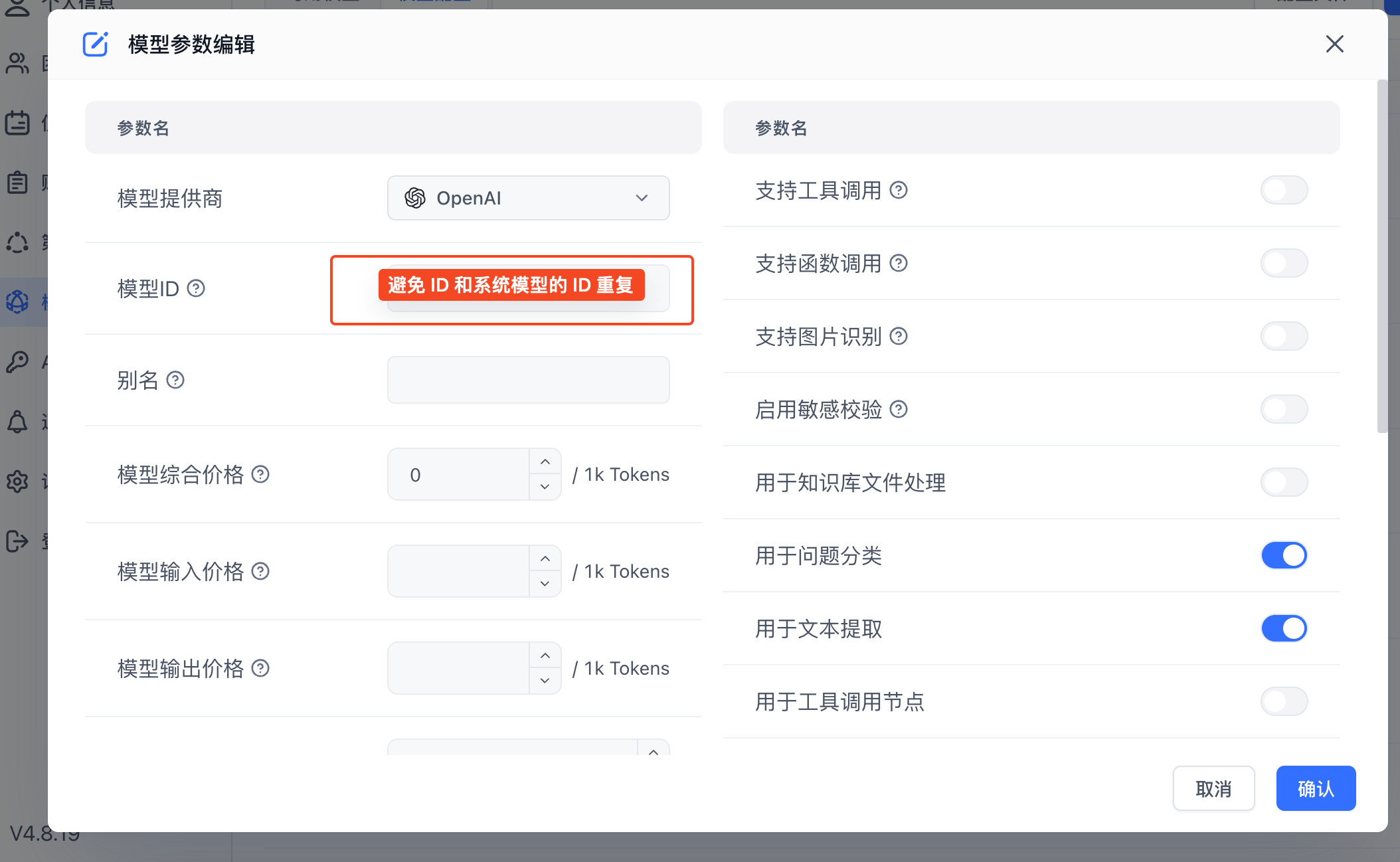
- Add via Form
In Model Configuration, click Add Model in the top-right corner and select the model type. Enter the provider, a unique model ID, display name, pricing, and supported capabilities, then click Confirm.
 |  |
- Add via Configuration File
If you find it tedious to configure models through the UI, you can use a configuration file instead. This is also useful for quickly replicating the configuration from one system to another.
Click Configuration File in the top-right corner of Model Configuration to open the JSON editor. Copy the existing configuration as a backup, edit the model array, and click Confirm to apply it. Confirming replaces the entire current model configuration, so include every model you want to retain.
 |  |
Model Status Probing
Overview
FastGPT provides built-in model health checking and monitoring. When enabled, the system periodically tests all active models, plots a 48-hour stability timeline, and sends real-time Webhook alerts when a model encounters failures or recovers.
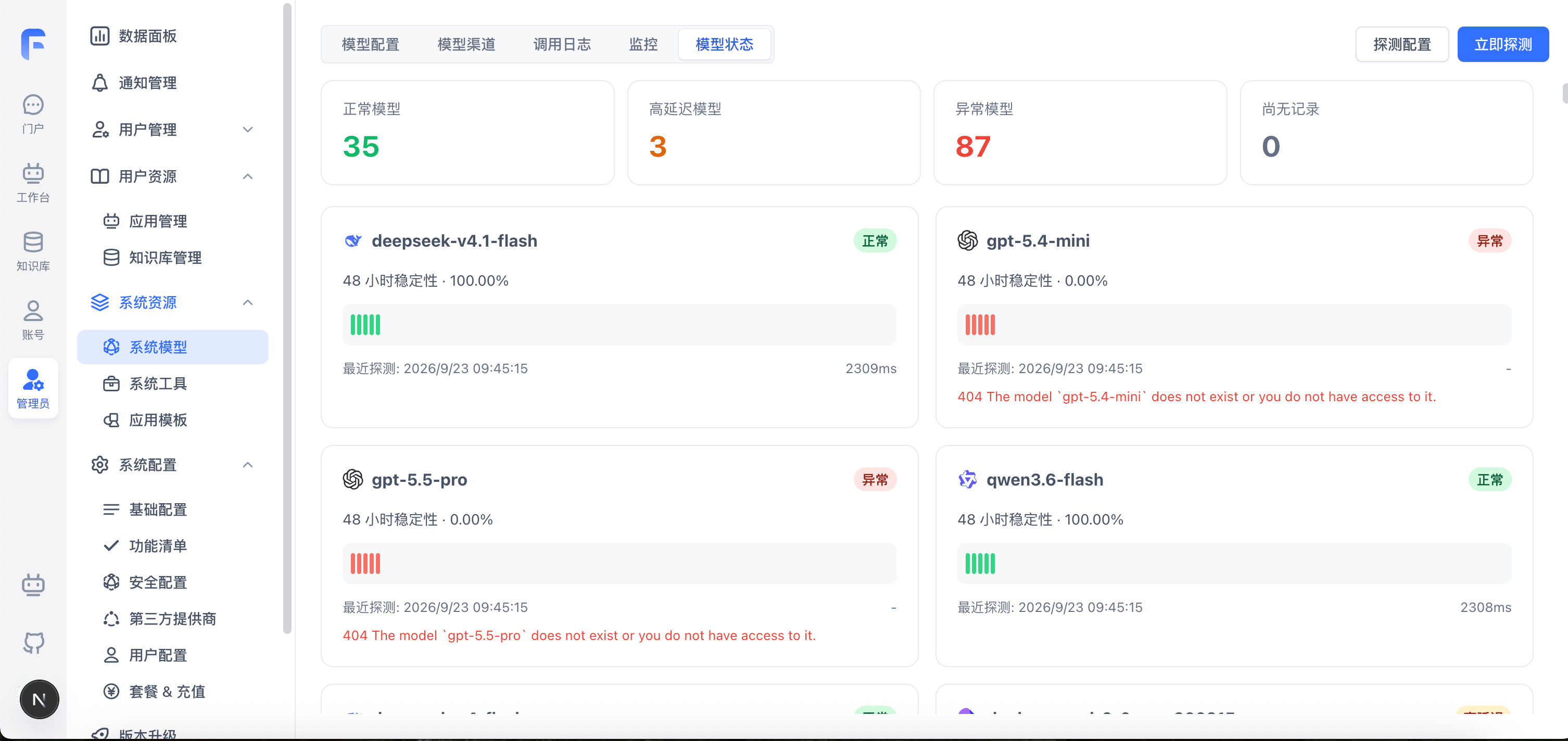
- Scope: Only active models (
isActive = true) in the system catalog are probed. Inactive models do not generate records. - Retry Mechanism: If an initial probe request fails, the system automatically retries up to 3 times (up to 4 attempts total). A single successful response marks the probe as passed; the model is marked as failed only when all 4 attempts fail. This prevents false alarms caused by intermittent network glitches.
- Health Statuses:
- Healthy (Green): The probe succeeded, with latency ≤ 30s.
- High Latency (Yellow): The probe succeeded, but latency > 30s.
- Error (Red): All 4 attempts failed.
- UI Features:
- 48-Hour Status Bar: Visualizes chronological probe history with hover animations. Hovering over a tick shows the probe timestamp, status (Normal / High Latency / Error details), and response latency.
- Stability Percentage: Displays the 48-hour success rate formatted to two decimal places (e.g.,
100.00%or98.50%). - Latest Error Retention: Directly displays the latest detailed error message at the bottom of error cards for rapid troubleshooting.
- Silent Background Refresh: While probing is enabled, the page automatically refreshes every minute in the background without UI flashes or loading overlays.
Configuration & Usage
Administrators can configure and toggle model probing directly in the admin console:
- Navigate to Status: Go to System Models in the left navigation and switch to the Model Probes tab.
- Open Configuration: Click Probe Configuration in the top right corner.
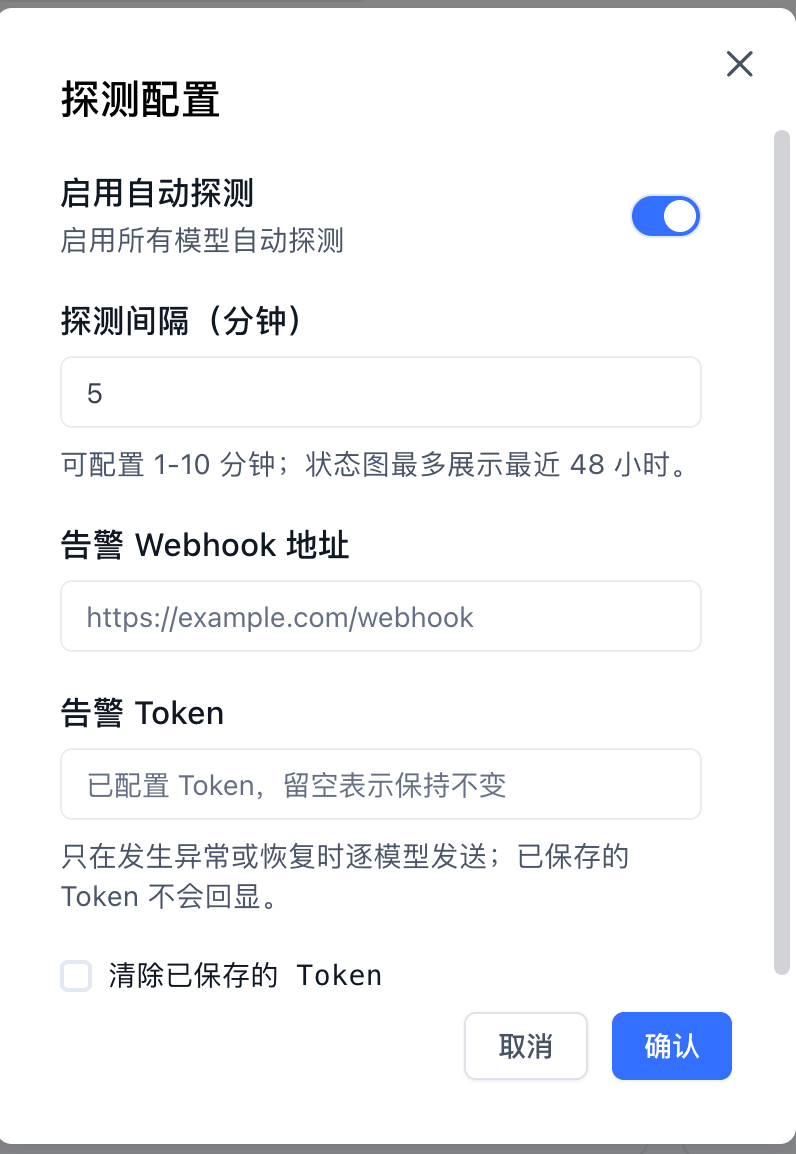
- Configure Settings:
- Enable Automatic Probes: Toggle on to schedule automatic background health checks for all active models. When toggled off, the page displays an empty state ("Automatic probe is disabled"), and background probing and alerts are paused.
- Probe Interval (minutes): Set an integer between 5 and 60 minutes.
- Alert Webhook URL (optional): The HTTP/HTTPS endpoint to receive state change notifications. Click the Test button next to the input to verify connectivity; the system will send simulated error and recovery test messages in sequence.
- Alert Token (optional): Authorization token for authenticated Webhook endpoints. Sent as an
Authorization: Bearer <token>header.
- Save: Click Confirm to apply changes.
- Probe Now (Optional): When probing is enabled, a Probe Now button appears in the top-right corner. Click it to immediately trigger a full-batch probe and refresh the status.
Webhook Specifications
When an Alert Webhook URL is configured, notifications are dispatched on state edge transitions on a per-model basis (individual requests per model, rather than batched).
Trigger Rules
- Failure Alert: Sent when a model transitions from non-red (green/yellow) to red (error). Event type:
model_status_error. - Recovery Notification: Sent when a model transitions from red (error) back to green or yellow. Event type:
model_status_recovered. - Suppression: Consecutive probes with unchanged error status do not trigger duplicate alerts, preventing alert storms.
Protocol Specification
- Method:
POST - Timeout: 5 seconds
- Headers:
Content-Type: application/jsonAuthorization: Bearer <AlertToken>(included only when configured)
Payload Parameters
| Path | Type | Description |
|---|---|---|
event | string | Alert event type: model_status_error or model_status_recovered |
status | string | Current probe status: red, green, or yellow |
model.modelId | string | Unique database ID of the model |
model.name | string | Display name of the model |
model.model | string | Model identifier |
model.provider | string | Provider identifier (e.g., OpenAI, DeepSeek) |
model.type | string | Model type (llm, embedding, rerank, tts, stt) |
probe.attempts | number | Actual attempts made in this round (1–4) |
probe.latencyMs | number | Response latency in milliseconds (omitted on error) |
probe.error | string | Detailed error message on failure (omitted on success) |
probe.startedAt | string | ISO 8601 time when this model's probe task started, including retry waits |
probe.requestStartedAt | string | ISO 8601 time when the last model request started |
probe.requestEndedAt | string | ISO 8601 time when the last model request ended and the status was recorded |
Webhook Payload Examples
1. Failure Alert (model_status_error)
{
  "event": "model_status_error",
  "status": "red",
  "model": {
    "modelId": "6732f10283c7ab1289de4567",
    "name": "gpt-5.4-mini",
    "model": "gpt-5.4-mini",
    "provider": "OpenAI",
    "type": "llm"
  },
  "probe": {
    "attempts": 4,
    "error": "404 The model `gpt-5.4-mini` does not exist or you do not have access to it.",
    "startedAt": "2026-09-23T01:44:00.000Z",
    "requestStartedAt": "2026-09-23T01:45:14.000Z",
    "requestEndedAt": "2026-09-23T01:45:15.000Z"
  }
}
2. Recovery Notification (model_status_recovered)
{
  "event": "model_status_recovered",
  "status": "green",
  "model": {
    "modelId": "6732f10283c7ab1289de4567",
    "name": "gpt-5.4-mini",
    "model": "gpt-5.4-mini",
    "provider": "OpenAI",
    "type": "llm"
  },
  "probe": {
    "attempts": 1,
    "latencyMs": 1630,
    "startedAt": "2026-09-23T01:50:13.000Z",
    "requestStartedAt": "2026-09-23T01:50:13.000Z",
    "requestEndedAt": "2026-09-23T01:50:15.000Z"
  }
}
Other
Channel Priority
Range: 1–100. Higher values are prioritized.

Enable / Disable Channels
In the control menu on the right side of each channel, you can enable or disable it. Disabled channels will no longer serve model requests.

Model Call Logs
Model calls made through channels are logged on the Call Logs page. Logs include input/output tokens, request time, latency, request URL, and more. Failed requests show detailed parameters and error messages for debugging, but logs are retained for only 1 hour by default (configurable via environment variables).

Self-Hosted Models
See the ReRank model deployment tutorial
Migrating from OneAPI to AI Proxy
If you were using OneAPI in an older version, you can migrate your channel configuration to AI Proxy using a script.
Send the following HTTP request from any terminal. Replace {{host}} with the AI Proxy address and {{admin_key}} with the ADMIN_KEY value in AI Proxy.
The dsn parameter in the request body is the MySQL connection string for OneAPI.
curl --location --request POST '{{host}}/api/channels/import/oneapi' \
--header 'Authorization: Bearer {{admin_key}}' \
--header 'Content-Type: application/json' \
--data-raw '{
    "dsn": "mysql://root:s5mfkwst@tcp(dbconn.sealoshzh.site:33123)/mydb"
}'
A successful response will return "success": true.
Note that the migration script performs a simple data mapping — it primarily transfers proxy URLs, models, and API keys. Manual verification after migration is recommended.
Last updated