
Integrating ChatGLM2 and M3E Models
Integrating private ChatGLM2 and m3e-large models with FastGPT
Introduction
FastGPT uses OpenAI's LLM and embedding models by default. For private deployment, you can use ChatGLM2 and m3e-large as replacements. The following method was contributed by community user @不做了睡大觉. This image bundles both M3E-Large and ChatGLM2-6B models, ready to use out of the box.
Deploy the Image
- Image:
stawky/chatglm2-m3e:latest - China mirror:
registry.cn-hangzhou.aliyuncs.com/fastgpt_docker/chatglm2-m3e:latest - Port: 6006
# Set the security token (used as the channel key in OneAPI)
Default: sk-aaabbbcccdddeeefffggghhhiiijjjkkk
You can also set it via the environment variable: sk-key. Refer to Docker documentation for how to pass environment variables.
Connect to OneAPI
Documentation: One API
Add a channel for chatglm2 and m3e-large respectively, with the following parameters:

Here, m3e is used as the embedding model and chatglm2 as the language model.
Test
curl examples:
curl --location --request POST 'https://domain/v1/embeddings' \
--header 'Authorization: Bearer sk-aaabbbcccdddeeefffggghhhiiijjjkkk' \
--header 'Content-Type: application/json' \
--data-raw '{
  "model": "m3e",
  "input": ["What is laf"]
}'
curl --location --request POST 'https://domain/v1/chat/completions' \
--header 'Authorization: Bearer sk-aaabbbcccdddeeefffggghhhiiijjjkkk' \
--header 'Content-Type: application/json' \
--data-raw '{
"model": "chatglm2",
"messages": [{"role": "user", "content": "Hello!"}]
}'Set Authorization to sk-aaabbbcccdddeeefffggghhhiiijjjkkk. The model field should match the custom model name you entered in One API.
Integrate with FastGPT
Edit the config.json file. Add chatglm2 to llmModels and M3E to vectorModels:
"llmModels": [
  // Other chat models
  {
    "model": "chatglm2",
    "name": "chatglm2",
    "maxToken": 8000,
    "price": 0,
    "quoteMaxToken": 4000,
    "maxTemperature": 1.2,
    "defaultSystemChatPrompt": ""
  }
],
"vectorModels": [
    {
      "model": "text-embedding-ada-002",
      "name": "Embedding-2",
      "price": 0.2,
      "defaultToken": 500,
      "maxToken": 3000
    },
    {
      "model": "m3e",
      "name": "M3E (for testing)",
      "price": 0.1,
      "defaultToken": 500,
      "maxToken": 1800
    }
],
Usage
M3E model:
-
Select the M3E model when creating a Knowledge Base.
Note: once selected, the embedding model for the Knowledge Base cannot be changed.

-
Import data
-
Test search
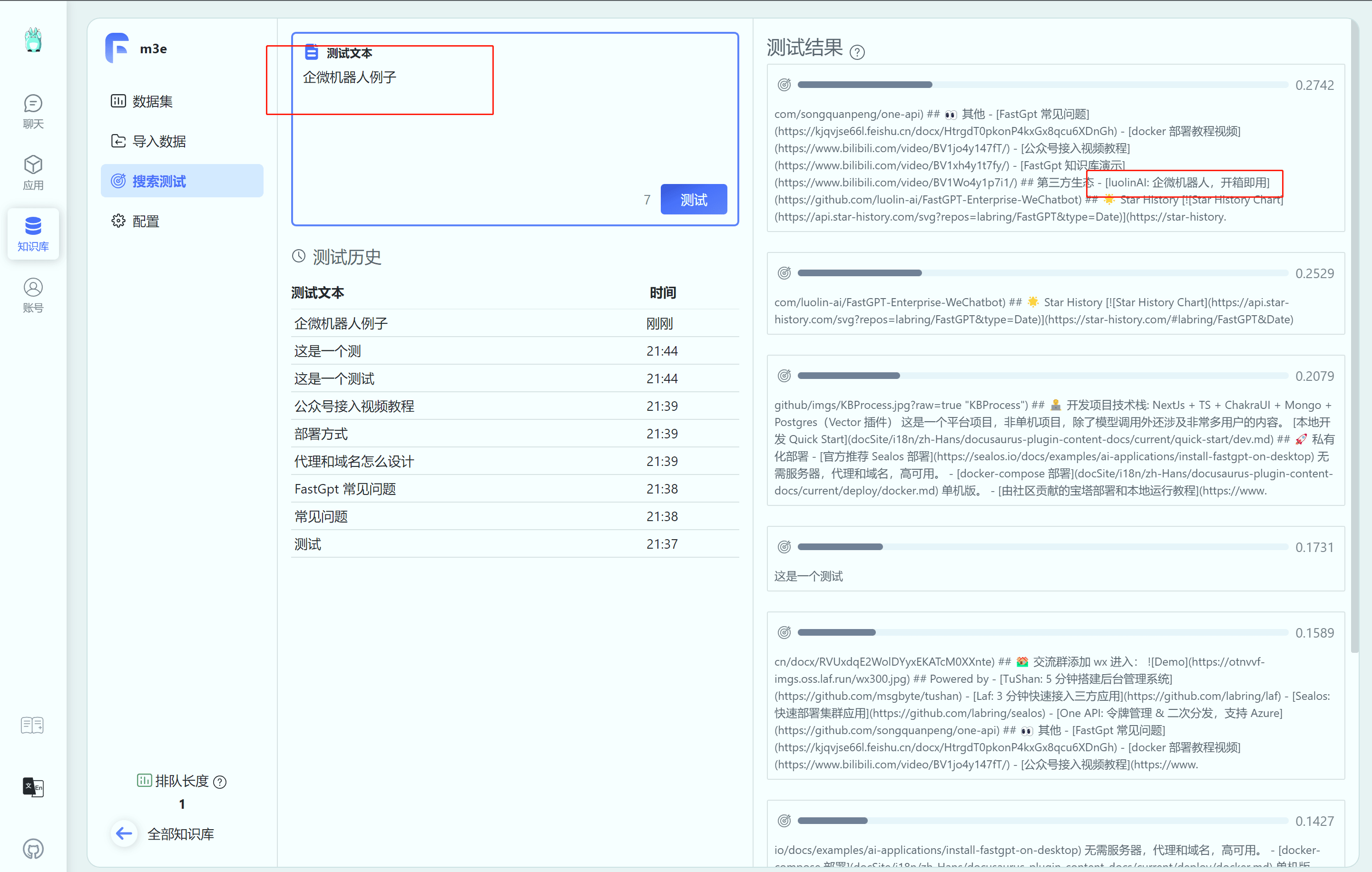
-
Bind the Knowledge Base to an app
Note: an app can only bind Knowledge Bases that use the same embedding model -- cross-model binding is not supported. You may also need to adjust the similarity threshold, as different embedding models produce different similarity (distance) scores. Test and tune accordingly.

ChatGLM2 model:
Simply select chatglm2 as the model.
File Updated