
Deploy with Sealos
One-click FastGPT deployment using Sealos
Deployment Architecture
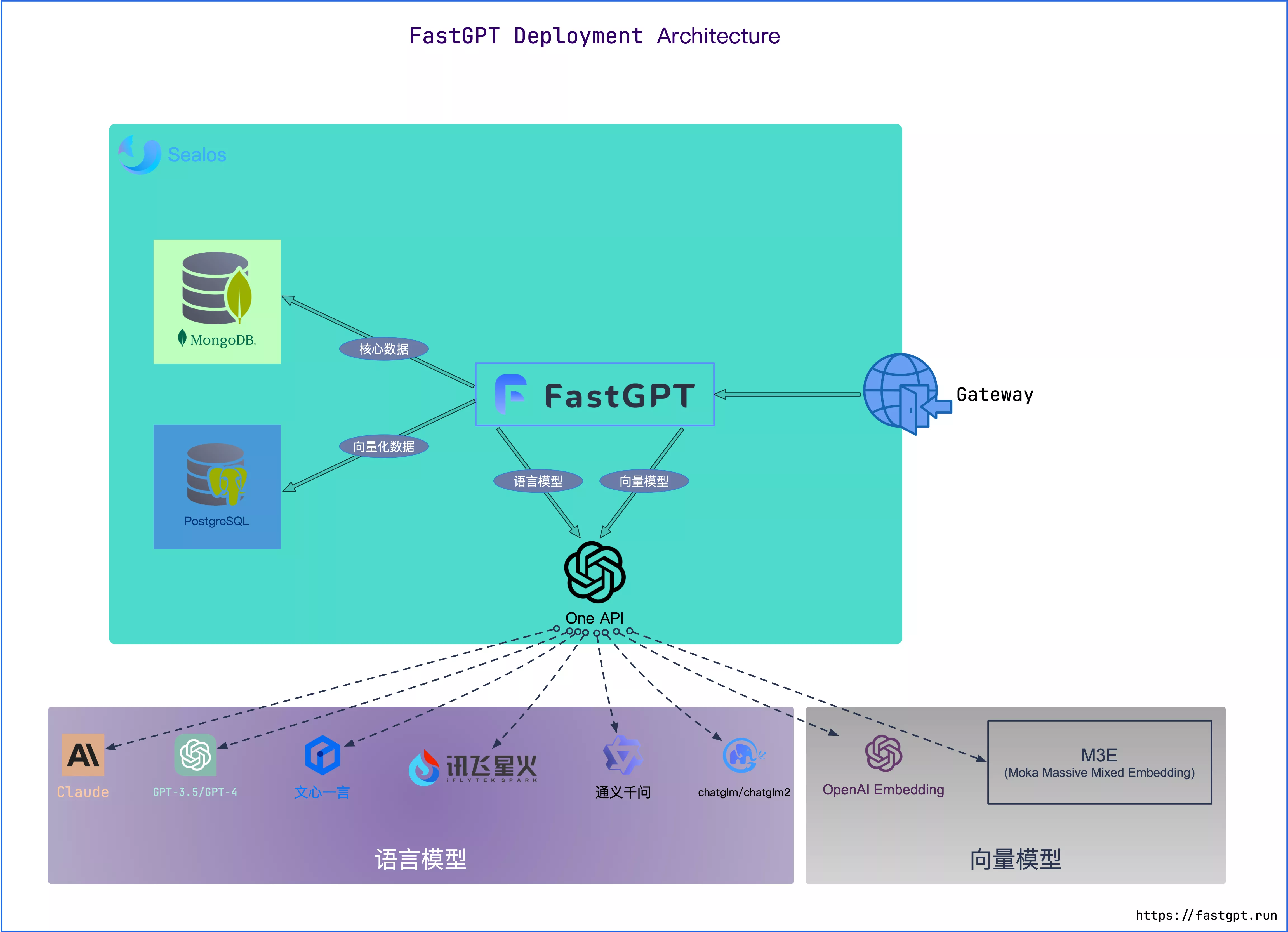
Multi-Model Support
FastGPT uses the one-api project to manage model pools, supporting OpenAI, Azure, mainstream domestic models, and local models.
See: Quick OneAPI Deployment on Sealos
One-Click Deployment
With Sealos, you don't need to purchase servers or domains. It supports high concurrency and dynamic scaling, and databases use KubeBlocks with far better I/O performance than simple Docker container deployments. Choose a region below based on your needs.
Singapore Region
Singapore servers are overseas with direct access to OpenAI, but users in mainland China need a VPN. International pricing is slightly higher. Click below to deploy 👇

Beijing Region
The Beijing region is hosted by Volcano Engine. Users in mainland China get stable access, but it can't reach OpenAI or other overseas services. Pricing is about 1/4 of the Singapore region. Click below to deploy 👇

1. Start Deployment
Since databases need to be deployed, wait 2–4 minutes after deployment before accessing. The default uses minimal resources, so the first access may be slow.
Follow the prompts to enter root_password and the openai/oneapi address and key.

After clicking deploy, you'll be redirected to the app management page. Click the details button on the right side of the fastgpt main app (named fastgpt-xxxx), as shown below.

After clicking details, you'll see the FastGPT deployment management page. Click the link in the external access address to open the FastGPT service.
To bind a custom domain or modify deployment parameters, click Change in the top right and follow Sealos' instructions.

2. Log In
Username: root
Password: the root_password you set during one-click deployment
3. Configure Models
4. Configure Models
You must configure at least one model set, or the system won't work properly.
View model configuration tutorial
Pricing
Sealos uses pay-as-you-go billing based on allocated CPU, memory, and disk. For specific pricing, open the Cost Center in the Sealos control panel.
Using Sealos
Overview
FastGPT Commercial Edition includes 2 apps (fastgpt, fastgpt-plus) and 2 databases. When using multiple API keys, install OneAPI (1 app and 1 database), totaling 3 apps and 3 databases.

Click details on the right to view each app's information.
Modifying Config Files and Environment Variables
In Sealos, open App Launchpad to see deployed FastGPT apps, and open Database to see corresponding databases.
In App Launchpad, select FastGPT, click Change, and you'll see environment variables and config files.

On Sealos, FastGPT runs 1 service and 2 databases. When pausing or deleting, handle the databases together. (You can start them during the day and pause at night to save costs.)
How to Update/Upgrade FastGPT
Upgrade script documentation — read the docs first to determine which version to upgrade to. Do not skip versions.
For example, if you're on version 4.5 and want to upgrade to 4.5.1: change the image version to v4.5.1, run the upgrade script, wait for completion, then continue upgrading. If the target version doesn't require initialization, skip it.
Upgrade steps:
- Check the update documentation to confirm the target version — avoid skipping versions.
- Open Sealos app management
- There are 2 apps: fastgpt, fastgpt-pro
- Click the 3 dots on the right side of the app, then Change. Or click details, then Change in the top right.
- Modify the image version number

- Click Change/Restart to automatically pull the latest image and update
- Run the initialization script for the corresponding version (if applicable)
How to Get the FastGPT Access Link
Open the corresponding app and click the external access address.

Configure a Custom Domain
Click Change on the app -> Custom Domain -> enter domain -> configure domain CNAME -> confirm -> confirm change.

How to Modify Config Files
Open Sealos app management -> find the app -> Change -> scroll down to advanced configuration where you'll find config files -> add new or click an existing config file to edit -> click confirm change in the top right.

Modify Site Name and Favicon
Add these environment variables to the app:
SYSTEM_NAME=FastGPT
SYSTEM_DESCRIPTION=
SYSTEM_FAVICON=/favicon.ico
HOME_URL=/dashboard/agent
SYSTEM_FAVICON can be a URL.

Mount a Logo
Currently, the browser logo can't be fully replaced — only SVG is supported. Full replacement will be available after visual customization is implemented.
Add a mounted file with path: /app/projects/app/public/icon/logo.svg, with the SVG content as the value.


Commercial Edition Config File
{
  "license": "",
  "system": {
    "title": "" // System name
  }
}
Using OneAPI
File Updated