
File Input
FastGPT file input feature overview
Starting from version 4.8.9, FastGPT supports configuring file and image uploads in both Basic Mode and Workflows. This guide covers how to use the file input feature and explains how document parsing works under the hood.
Using in Basic Mode
When file upload is enabled in Basic Mode, it uses tool-calling mode — the model decides whether to read the file content.
Find the file upload option on the left panel and click the Enable/Disable toggle to open the configuration dialog.

Once enabled, a file selection icon appears in the chat input area. Click it to select files for upload.

Behavior
Starting from version 4.8.13, Basic Mode forces file parsing and injects the content into the system prompt, preventing cases where the model skips reading the file during multi-turn conversations.
Using in Workflows
In Workflows, find the File Input option in the system configuration panel and click the Enable/Disable toggle to open the configuration dialog.

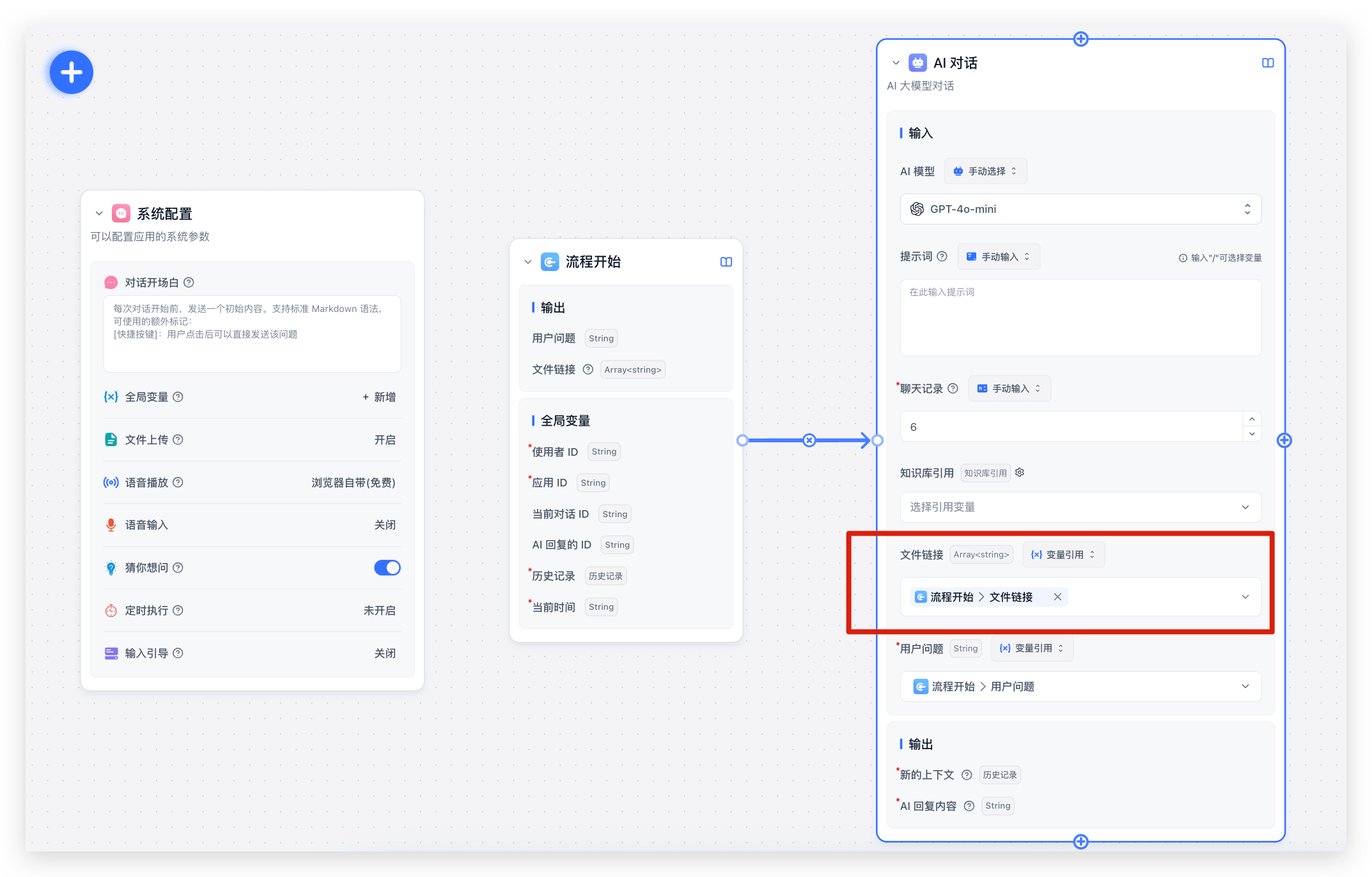
There are many ways to use files in Workflows. The simplest approach, shown below, connects document parsing via tool calling — achieving the same result as Basic Mode.
 |  |
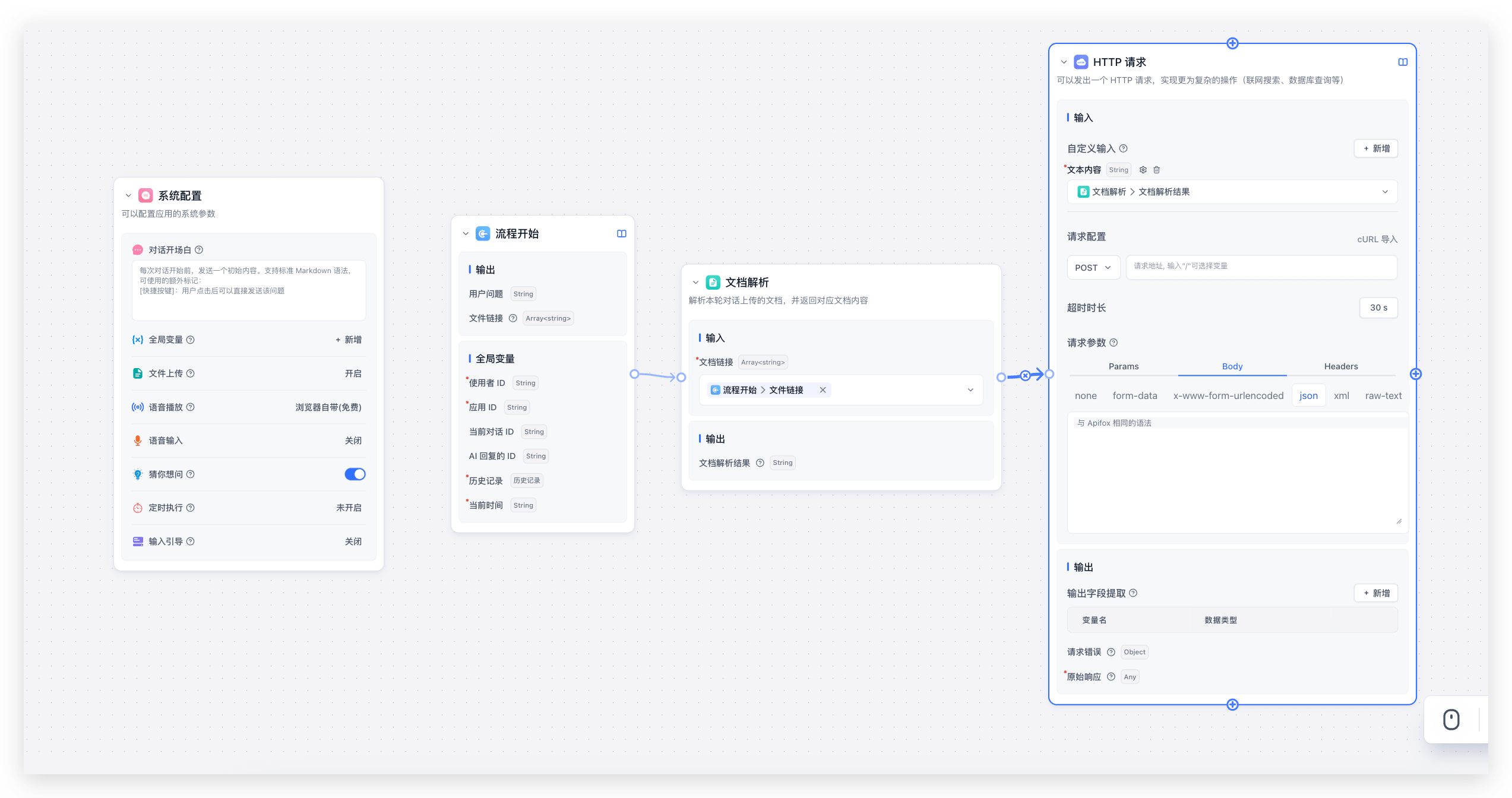
You can also use Workflows to extract or analyze document content, then pass the results to HTTP requests or other modules to build a document processing pipeline.
How Document Parsing Works
Unlike image recognition, LLMs currently cannot parse documents directly. All document "understanding" is achieved by converting documents to text and injecting it into the prompt. The following FAQs explain how this works — understanding the mechanics helps you use document parsing more effectively in Workflows.
How are uploaded files stored in the database?
In FastGPT's chat history, messages with role=user store their value in this structure:
type UserChatItemValueItemType = {
  type: 'text' | 'file'
  text?: {
    content: string;
  };
  file?: {
    type: 'img' | 'doc'
    name?: string;
    url: string;
  };
};
Uploaded images and documents are stored as URLs — the parsed document content is not stored.
How are images handled?
The document parsing node does not process images. Image URLs are filtered out. For image recognition, use an LLM that supports vision.
How does the document parsing node work?
The document parsing node accepts an array<string> input (file URLs) and outputs a string (the parsed content).
- The node only parses URLs with document-type file extensions. If you upload both documents and images, images are ignored.
- The document parsing node only processes files from the current workflow run, not files from chat history.
- How multiple documents are concatenated:
Multiple files are concatenated using the following template — filename + content, separated by \n******\n:
File: ${filename}
<Content>
${content}
</Content>
How to use document parsing in AI nodes
AI nodes (AI Chat / Tool Calling) have a document URL input that lets you reference document addresses directly.
It accepts an Array<string> input. The URLs are parsed and injected into a system message using this prompt template:
Use the content in <FilesContent></FilesContent> as reference for this conversation:
<FilesContent>
{{quote}}
</FilesContent>
Changes to File Upload in Version 4.8.13
There are some differences from version 4.8.9. We've maintained backward compatibility to avoid breaking existing workflows, but please update your workflows to follow the new rules as soon as possible — compatibility code will be removed in future versions.
- Basic Mode now forces file parsing instead of letting the model decide, ensuring documents are always referenced.
- Document parsing: no longer parses files from chat history.
- Tool Calling: supports direct document reference selection — no need to attach a document parsing tool. Automatically parses files from chat history.
- AI Chat: supports direct document reference selection — no need to go through the document parsing node. Automatically parses files from chat history.
- Standalone plugin execution: no longer supports global files. Plugin inputs now support file-type configuration as a replacement for global file upload.
- Workflow calling plugins: uploaded files are no longer automatically passed to plugins. You must manually specify the variable for plugin input.
- Workflow calling sub-workflows: uploaded files are no longer automatically passed to sub-workflows. You can manually select which file URLs to pass.
File Updated