
DingTalk Knowledge Base
How to connect DingTalk Knowledge Base to FastGPT
FastGPT supports connecting DingTalk Knowledge Base through a DingTalk internal enterprise app. When creating the dataset, enter App Key, App Secret, and User ID. After creation, open the dataset detail page, click Add file, and select the DingTalk workspace, online documents, or folders to import.
Only DingTalk online document text is supported. Binary files such as PDF, Word, Excel, and PPT are not supported.
1. Create a DingTalk app
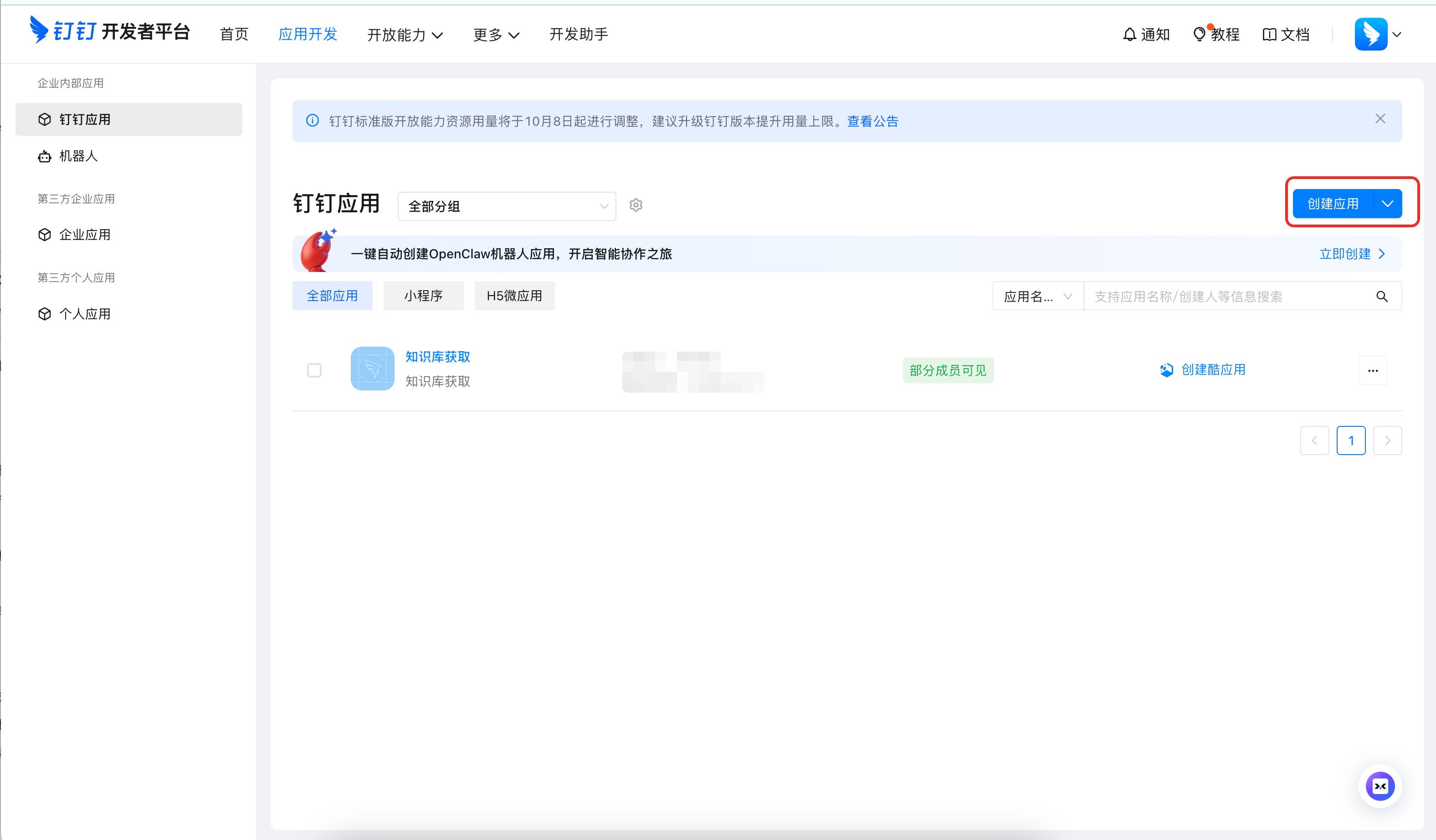
Open the DingTalk developer app page, then select an internal enterprise app under the target organization.
If you do not have an app yet, create an internal enterprise app from Application Development.
2. Get the FastGPT fields
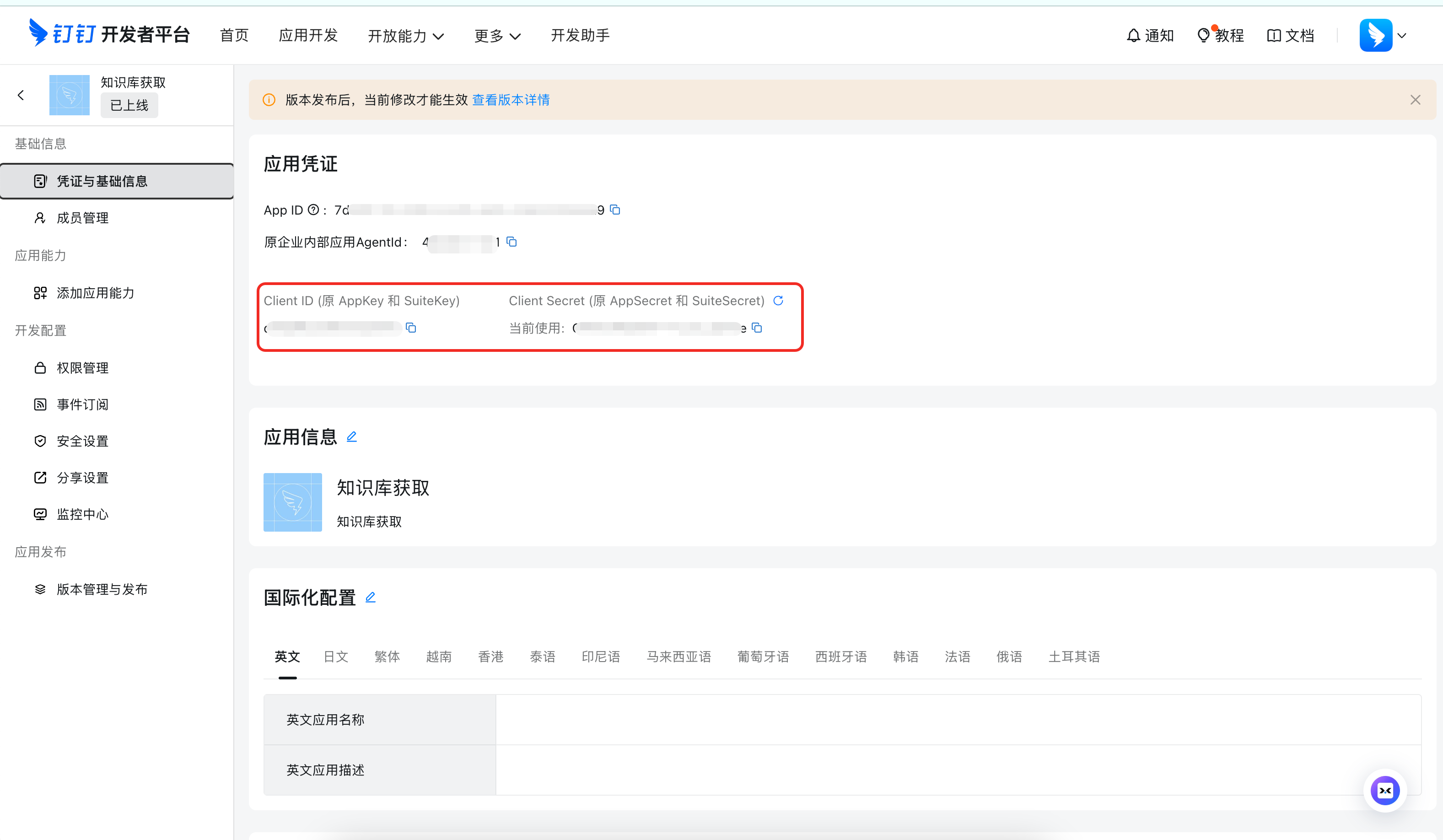
| FastGPT field | Where to get it in DingTalk |
|---|---|
App Key | Open Credentials and Basic Information in the app detail page, then copy Client ID (formerly AppKey and SuiteKey). |
App Secret | Copy Client Secret (formerly AppSecret and SuiteSecret) from the same page. |
User ID | Ask the organization contact administrator to open DingTalk admin. Path: oa.dingtalk.com -> Contacts -> Member Management -> select the operator member -> copy the member User ID from the detail page. |
Notes:
App Secretis sensitive. Do not share it publicly.User IDis not a phone number, display name, orunionId.- If the member detail page does not show
User ID, ask the contact administrator to export the member list fromContacts; the exported sheet usually contains memberUser ID. - We recommend using a dedicated DingTalk member as the FastGPT sync account and granting it read-only access to the target workspace.
- Workspaces that this member cannot access will not appear in FastGPT.
3. Enable DingTalk app permissions
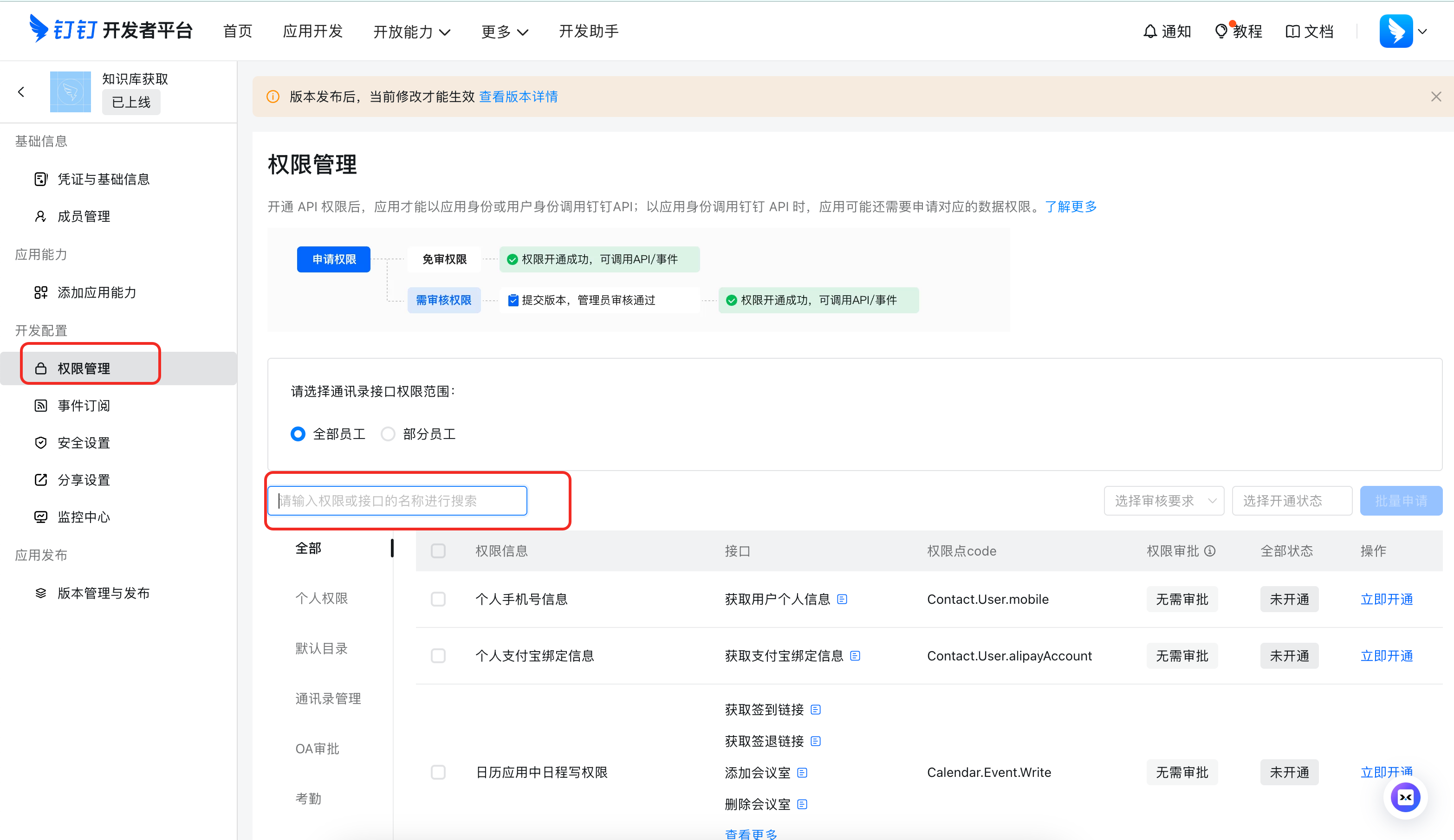
Open Permissions in the DingTalk app detail page, then search for and enable:
| Permission | Purpose |
|---|---|
qyapi_get_member | Get the operator ID from User ID. |
Wiki.Workspace.Read | List DingTalk workspaces accessible to the operator. |
Wiki.Node.Read | List folders and documents under a workspace. |
Storage.File.Read | Read DingTalk online document content. |
Save and publish the app configuration after enabling permissions. If an error contains requiredScopes, enable the permissions listed there.
4. Create a DingTalk dataset in FastGPT
- Open the FastGPT dataset list and click
New. - Select
DingTalk Knowledge Baseunder external document sources. - Enter:
App KeyApp SecretUser ID
- Confirm creation.
You do not need to select a DingTalk workspace or root directory during creation.
5. Add files and sync
After creation:
- Open the dataset detail page.
- Click
Add file. - Select the target DingTalk workspace.
- Select online documents or folders to import.
- Confirm the import.
When a folder is selected, FastGPT recursively imports supported online documents under that folder.
When DingTalk document content changes, click Sync from the imported file menu. FastGPT will read the latest content and update indexes.